Get Elements in Link Using Name Search and Category

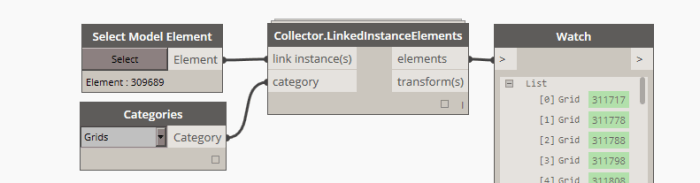
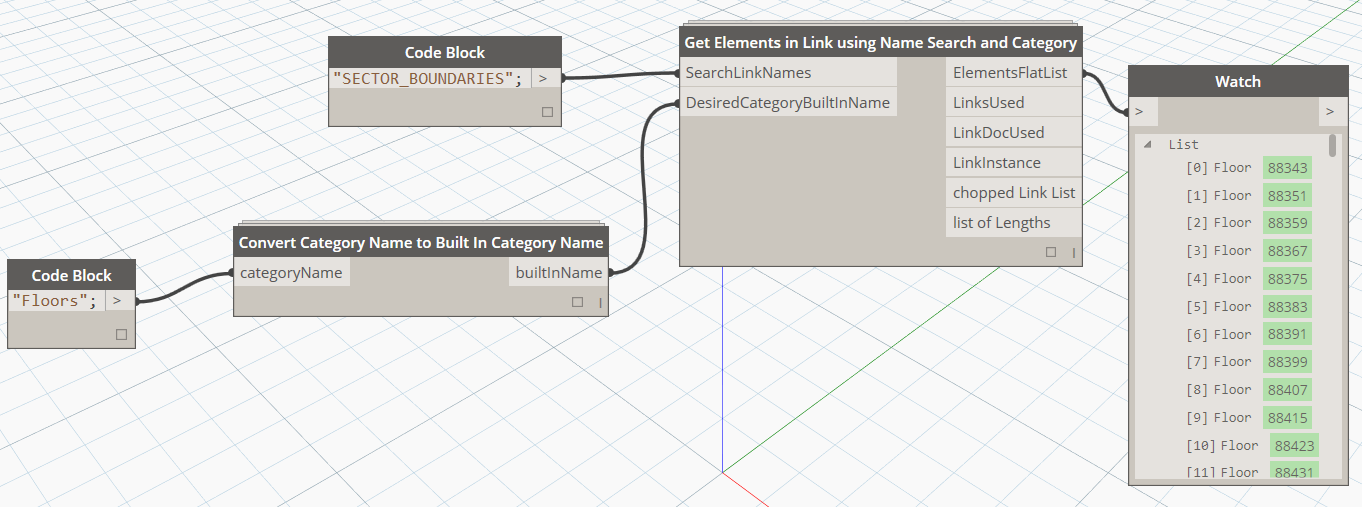
This node will collect objects by doing a wildcard ‘contains’ search on part of the Link Filename, and then using the Built-in Category Name to collect the desired objects. It can be used with the ‘convert…’ node below to allow human readable category name input as string.

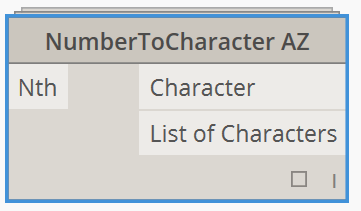
NumberToCharacter AZ

NumberToCharacter AZ

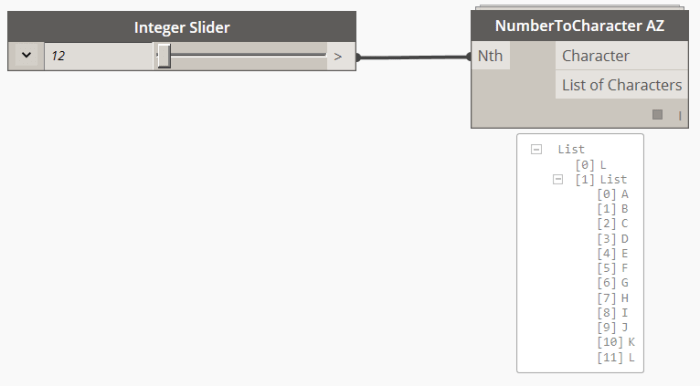
This node takes an integer as input.

Returns the “alphabetical equivalent character”,  and a list from A to the alphabetical equivalent character.

It only works from 1 to 26 (A to Z). [See NumberToCharacter AAZZ for higher inputs]

After this, returns a “Out of range” message.
NumberToCharacter AZ_working

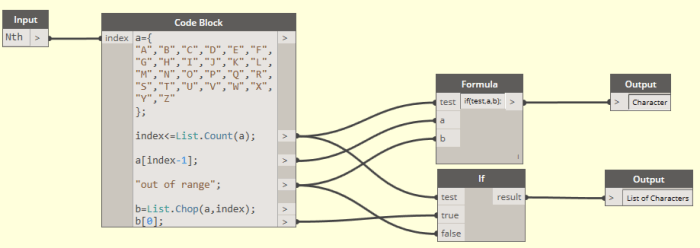
The node uses DesignScript to work:

NumberToCharacter AZ_inside

There is a local variable, “a”, which is an alphabetical list.

The input, named index in the code block,  is evaluated to see if it’s less or equal than “a” count:

index<=List.Count(a). This is passed into a formula node as the “Test input”.

If it’s true, then, it retrieves the index, less one, in the alphabet’s list. We subtract one unit because we want to make our input “one based”, instead of “zero based”. 1 will equal to A.

If it’s false, the string “Out of range” is passed to the output node.

For the second output, a new list called “b” is defined. Starting with “a” list, it is “choped” in two lists, been the input the chopping point.

The last step is getting the first list, so a” b[0]” is used and passed to the second output. This second output is also connected to te “Out of Range” string if the condition is not true.


Filter Floors by Comments and Level and Make Section Box View

This node requires Floor objects that have been populated with a Comments parameter as an identifier. In the workflow example below, a linked model contains the Floors. These are selected and filtered to the specific Level and identifier, and with that one Floor object in hand, the Dynamo script goes on to make a Section Boxed 3D View around that Floor, Set its Name, and Set a View Template to the newly created view.


QR.ECCLevel

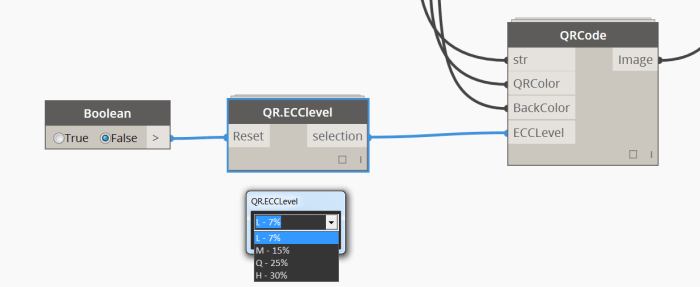
This node generates a string for input to the ECCLevel input of QRCode node. When run first time it opens a drop down window where one can select between the 4 levels of error correction level on QR codes. L, M, Q or H for 7%, 15%, 25% or 30% respectively.

QR.ECCLevel

Inputs:

  • Reset: Boolean input for resetting node. Change boolean input to run again.

Credits: The Ironpython script used in this node is largely based on Dimitar Venkovs selection nodes from the sping nodes package. It is licenced under the MIT licence.