
This node simply converts a Point object into a string representation. From here, it could be written to CSV or Excel, or sent to the Clipboard as shown below.

This node simply converts a Point object into a string representation. From here, it could be written to CSV or Excel, or sent to the Clipboard as shown below.
This is an alternate way to write to Excel (instead of using the built in Excel.WriteToFile), found in the Bumblebee package created by Konrad Sobon. It requires the user to set up a ‘BB Data’ node, which is one of the inputs. The full list of inputs is:
FilePath
RunIt – a true / false switch, where true means ‘do it’
ByColumn – a true / false switch that essentially has the effect of Transposing the data before writing it
BB Data – a node that sets up the information to be written to Excel, and it comprehends the ‘Excel way’ of writing cell references, ie. A1, A2 etc.

More information at: http://archi-lab.net/bumblebee-dynamo-and-excel-interop/
This is a Standard Node that allows Dynamo to write list data directly to an Excel file. While running, Excel will open and the data will populate.
Inputs:
filePath – path to the desired target Excel file
sheetName – write the data into this Excel sheet
startRow and startCol – 0 based index for the start of the Excel write operation. 0,0 as shown below is equivalent to A1.
data – a list or list of lists. To alter whether data is written by Rows or Columns, a List.Tranpose node can be included immediately before the data input.
overWrite – allows control over whether Excel will overwrite existing information (true), or retain it (false).

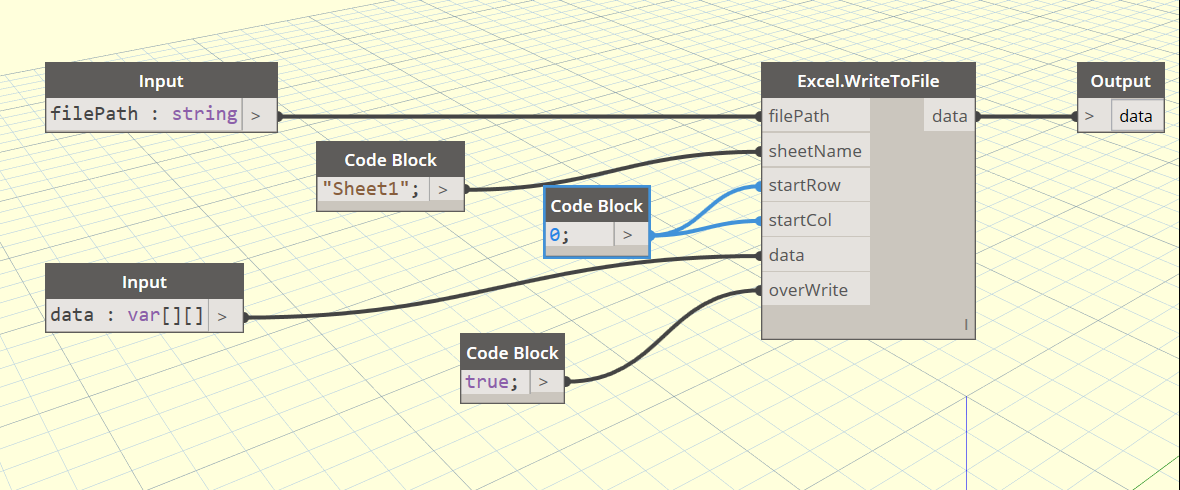
This is a simple wrapper for the Excel.WriteToFile standard node, that defines some default values and makes it quicker and cleaner to use.

The actual definition simply gives some default values to the OOTB Office node, as shown:
Take a list of lists and check whether all lists have the same length (same number of items in the list). This node is useful to run as part of a data export workflow (perhaps to Excel), to ensure the output lists are matching and thus have integrity.

This node offers a single output from two variables via a boolean input.

Source: http://sixtysecondrevit.blogspot.com/2016/02/variable-output-in-dynamobim-with-rhythm.html
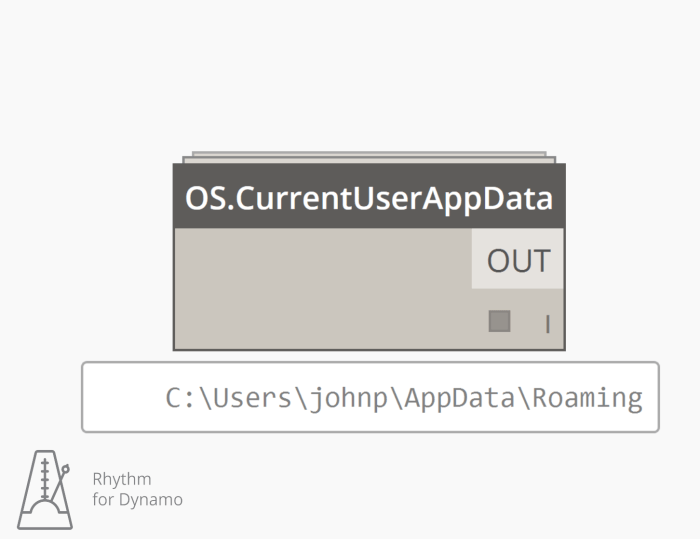
This node will retrieve the file path for the current logged in user’s appdata. This begins to be useful when analyzing for dependencies.
This node retrieves the current logged in windows user.
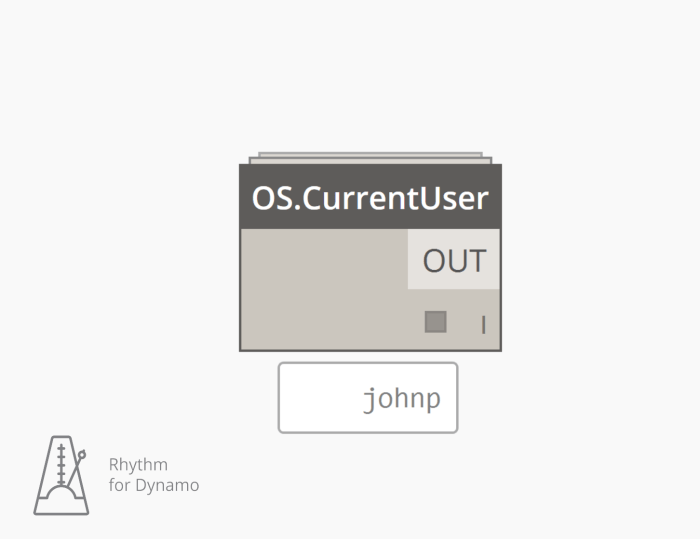
Source: http://sixtysecondrevit.blogspot.com/2015/08/get-current-user-in-dynamobim.html
It is often useful to select only the Family Instances (Component Families) from the current document. This can allow easy access to element parameters, or could even be paired with a Family Location node to then access the point coordinates of all family origins. This node takes no inputs, and runs against the current document. It is a simple wrapper of the Element Types and All Elements of Type Standard Nodes, but it uses less screen real estate and is a good building block for more advanced workflows.

For model checking and auditing, it is often useful to be able to collect every single element from a Revit model. One way of doing this is to use the built in Category list, and then loop through and select all elements from each Category. This node also allows Document as input, meaning it can collect from the Current Document, Linked Documents, or even from Documents open in the current Revit instance. In terms of usefulness, this node may capture more elements than you actually need, as it casts a very wide net. Hence the name… Super Collect Elements. The outputs include showing which Categories had elements ‘found’ in them, and a ‘flat list’ of elements. The flat element list can be very useful for getting parameters or performing other operations like converting using Element.Geometry.

It can also be used for Linked Documents. In the example below, Views are removed from the Category list to avoid dealing with View Template selection issues:

The actual Python script used to loop and select by built in category name is quite basic:

 Dynamo Nodes