
This node reports the Level an Element is associated with:

This node reports the Level an Element is associated with:
This node allows you to select objects by simply specifying a Level as input using the Levels node:


This node requires Floor objects that have been populated with a Comments parameter as an identifier. In the workflow example below, a linked model contains the Floors. These are selected and filtered to the specific Level and identifier, and with that one Floor object in hand, the Dynamo script goes on to make a Section Boxed 3D View around that Floor, Set its Name, and Set a View Template to the newly created view.

This node generates a string for input to the ECCLevel input of QRCode node. When run first time it opens a drop down window where one can select between the 4 levels of error correction level on QR codes. L, M, Q or H for 7%, 15%, 25% or 30% respectively.
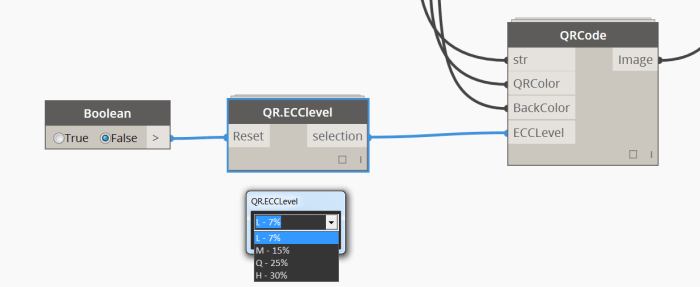
Inputs:
Credits: The Ironpython script used in this node is largely based on Dimitar Venkovs selection nodes from the sping nodes package. It is licenced under the MIT licence.
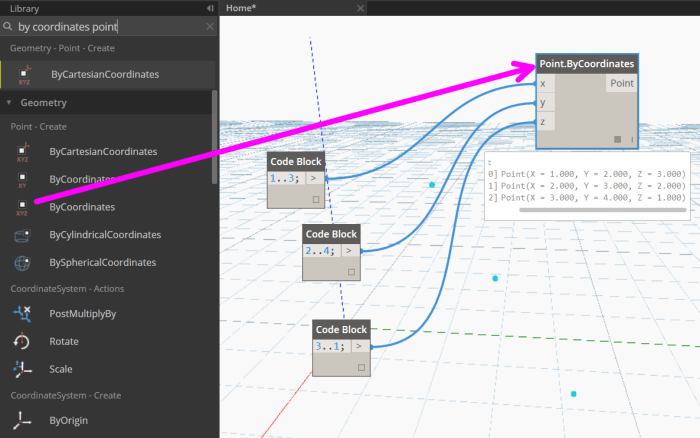
Form a Point given 3 Cartesian coordinates.
This was developed as part of the workflow to convert Rooms to Floors. Revit needs ModelCurves, but to get there Dynamo needs to make Polycurves from the Room boundary. Simply send a list of Rooms as input:


Dynablaster is a small package of custom Dynamo nodes, developed to reuse short concatenations of nodes that appear frequently in everyday Dynamo workflows. It is focused in Revit data management rather than in complex geometry generation.
Mostly built with Out Of The Box nodes, DesignScript is used to “compact” the definitions in pursuit of writing the shortest possible code for a given purpose. Motivated by the great community of Dynamo users, the author is learning Python to improve his skills and will implement it on Dynablaster Nodes at some point.
There are a group of nodes related to Dyno Browser plugin. These nodes help generating the Json configuration file. The functionality however, is limited. The author has no affiliation with the developers of Dyno Browser.
Dynablaster was the name for the european distribution of the old videogame “Bomberman”: https://en.wikipedia.org/wiki/Dynablaster

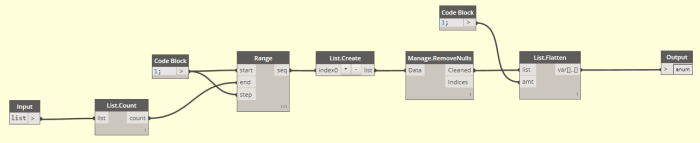
Feed a List into this node and it will return a number range, starting at 1 and up to the total count of the given List.
Useful to renumber Revit elements, as in this example, where it helps generating the numbering of certain Rooms in the model: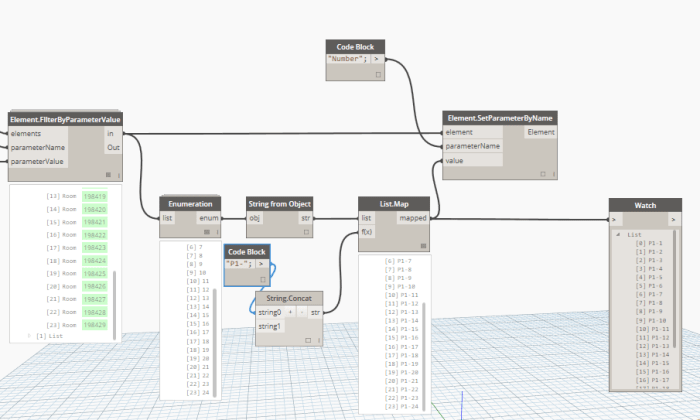
It is built mainly with OOTB nodes and one custom node. It operates a Count method over the list object, and using this value to generate a number range from 1 to the obtained count. Last implementation avoids unexpected behavior when the input list is empty. In that case, now the output is an empty list.
In this workflow, you simply input a Directory Path and it will get all the node names of the DYF files in that folder, and send them directly to Clipboard. For the Clipboard integration to work, it must be run from a Revit-Dynamo instance (not in Sandbox mode).
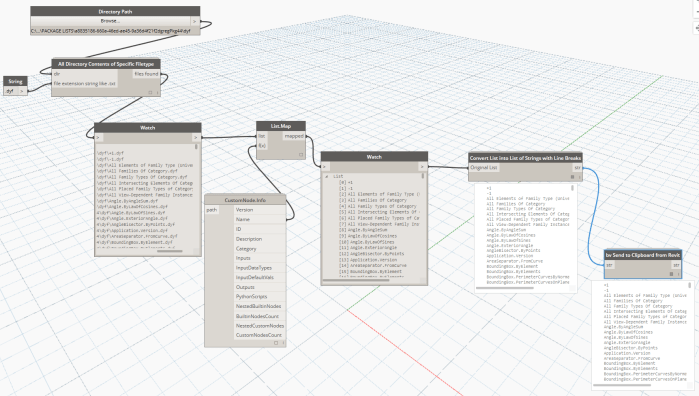
Following this, you can switch to another application and use Ctrl+V to Paste the data. If you want to create tasks in Asana from these line items, paste it temporarily in Notepad and then Cut-Paste 100 items at a time directly into the Asana task list.
This node will take a List as Input and convert it into a single string object, where each new line was an item in the original list. This can be used to take list data from Dynamo, put it into a string, and send it immediately to the Clipboard, as shown in the example below.

 Dynamo Nodes