
This will take the File Path to a dyf file as input, and return many properties of that node. In the example below, List.Map is used to iterate through and return only the Node name.

This will take the File Path to a dyf file as input, and return many properties of that node. In the example below, List.Map is used to iterate through and return only the Node name.
This will check a directory for files of a given filetype, then pass a flat list of files that have that extension. In the example below, all files with the .dyf extension are listed from the Directory Path. This can be run in Dynamo Sandbox mode.

This will give you a summary of nodes you have installed in your Dynamo Packages folder.
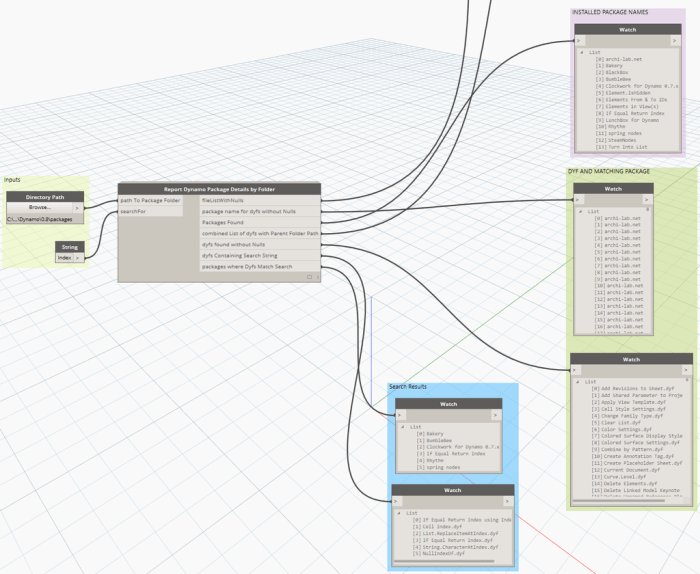
Source: https://twitter.com/lukeyjohnson/status/657367093113933824
This node gets a list of elements [list], a parameter name[string] and a parameter value [].
Checks if the elements parameter is equal to the given value, and splits the elements list in two: the first been “true” and the second been “false”
This node is built using OOTB nodes with nothing special in it. But sumarizes a task we do in almost every definition.

Here follows a little example of this node in action:
We input all the rooms in the project, then get only those having “Comments” parameter equal to “revestir”
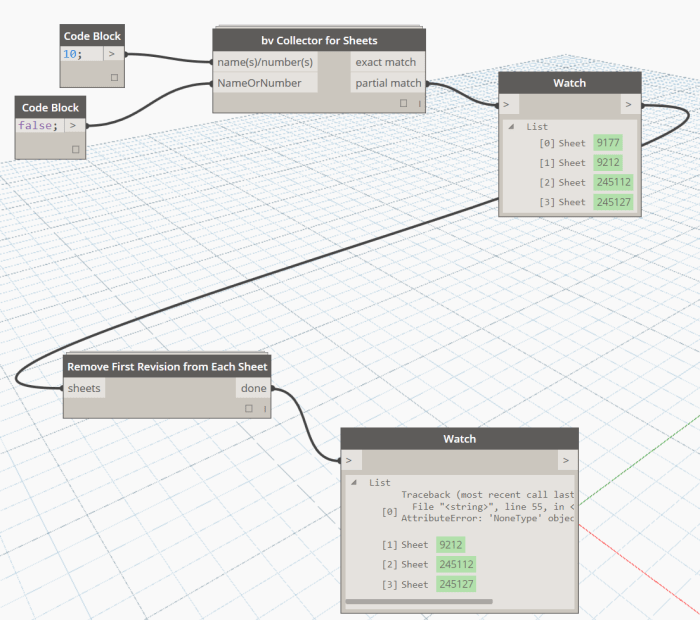
This node takes a Sheet list as input, and finds the first (earliest) Revision that is placed on each individual Sheet. Then it removes that Revision from the Sheet. This node may be useful for project cleanup.
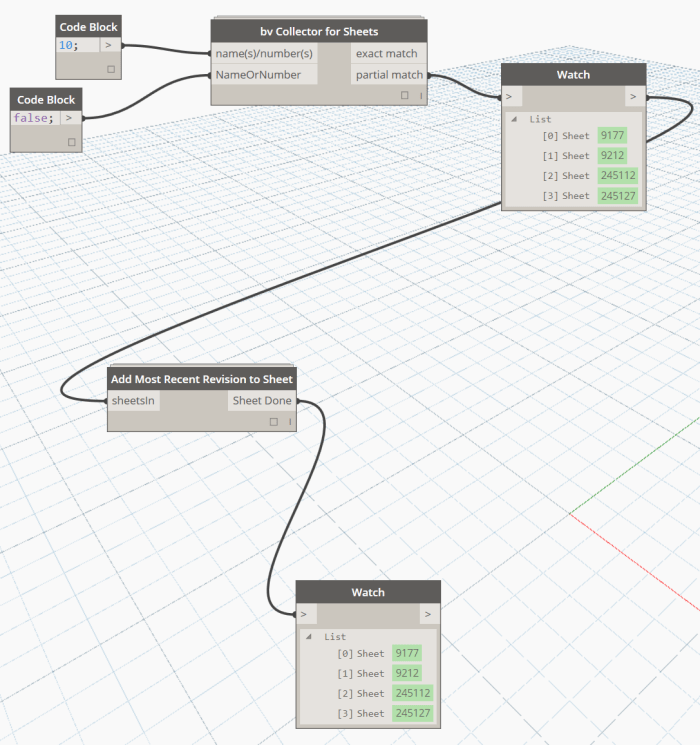
This node takes a Sheet list as input and applies the most recent Revision (last Revision entry) to those Sheets.
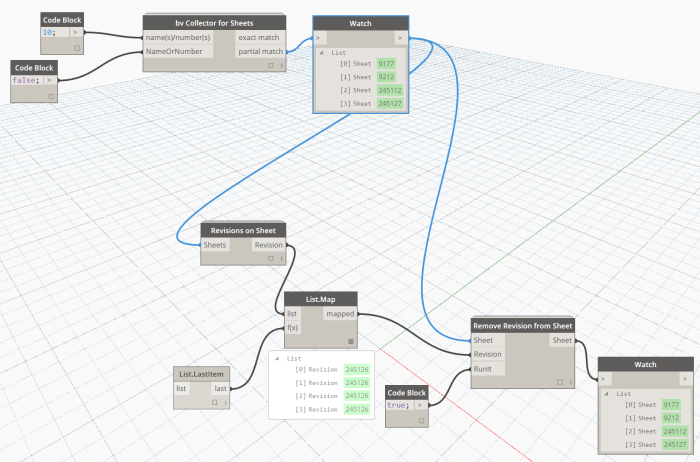
This node takes a Sheet and a Revision object as inputs, and removes that Revision from the Sheet. It can be combined with List.Map and List.LastItem as below to remove the last Revision from every input Sheet.
This node converts a Dynamo surface, poly-surface or solid into a Revit family. It then places an instance of that family inside your project, reflecting the geometry position from inside Dynamo. It currently supports Revit 2014 to 2016.
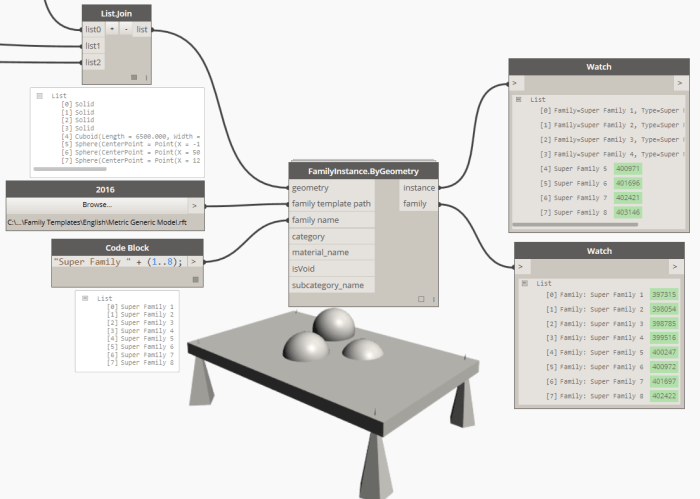
The most important inputs are:
The optional inputs are:
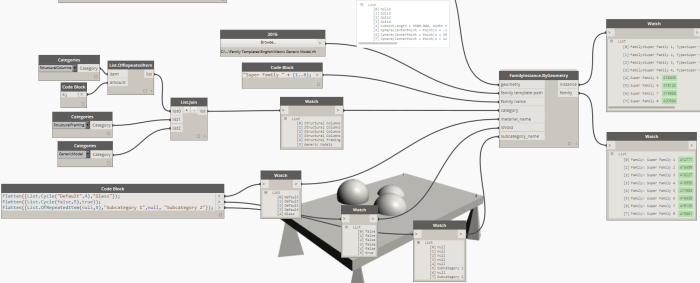
Do note that by default, the node works in “longest” lacing. That means that if any of the optional inputs are less than the geometry objects and the family names, the last input will be used for all remaining families. In the above image, the families at [6] and [7] will belong to the “Generic Model” category and will act as void cuts.
You can download this sample and others from the Spring Nodes repository:
https://github.com/dimven/SpringNodes/tree/master/Samples
Currently the node does not place multiple geometries into a single family. There is a partial workaround described in the following discussion:
https://github.com/dimven/SpringNodes/issues/10
A node for such cases might be developed in the future.
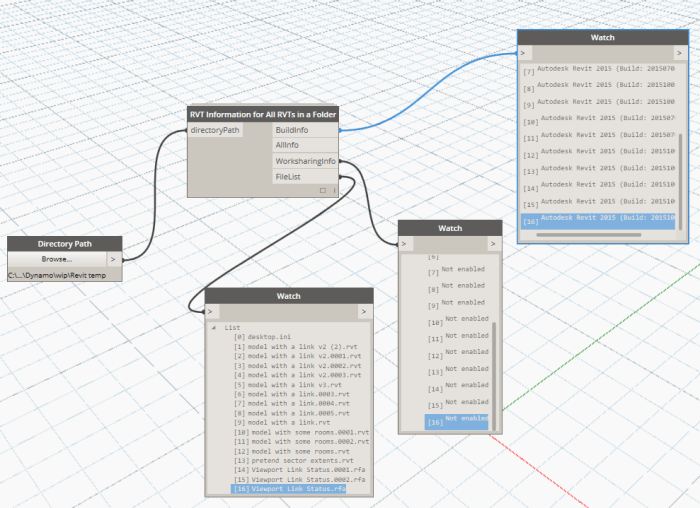
This node takes a Folder as an Input, and then checks each file in that folder for its RVT Build number and Worksharing Status:
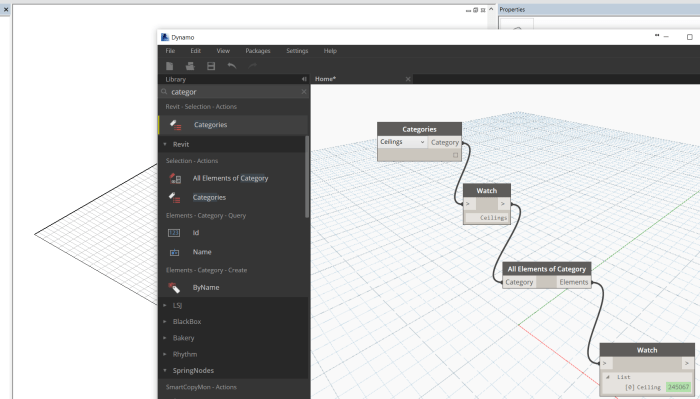
This is one of the simplest ways to select Revit objects in Dynamo. Simply feed a Categories selection into this All Elements of Category node, and after the script is Run, those objects will be selected in the Dynamo session.
 Dynamo Nodes