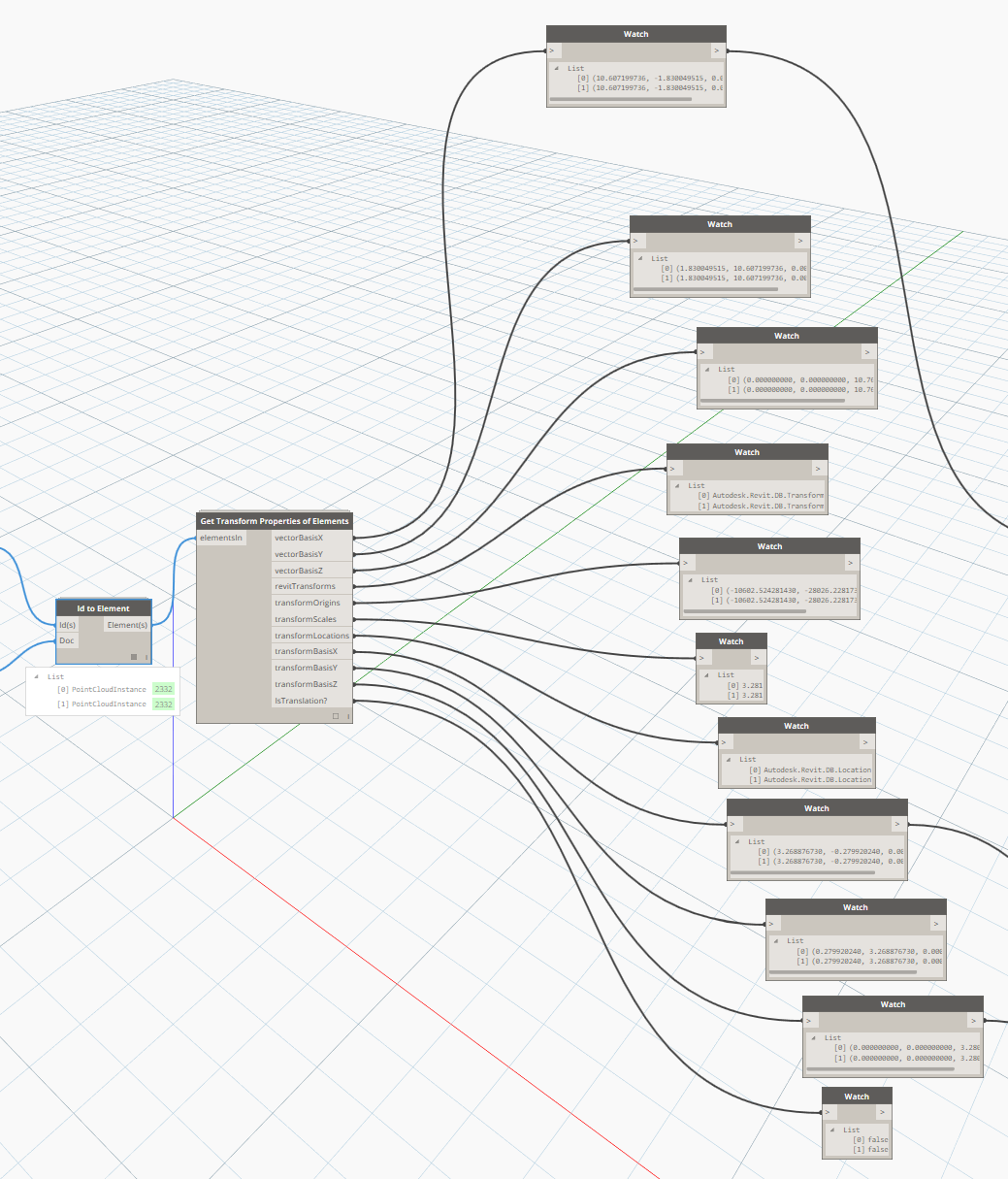
Get Link Instance and Element Ids from LinkElementId Object

This node takes a list of LinkElementId objects as input, and then extracts the API data that is associated with them. As can be observed, if the LinkElementId refers to an object in the Host model, its Element Id will appear in the HostElementIds output. If the LinkElementId refers to a linked element, the LinkedInstanceIds and LinkedElementIds outputs reveals that information.

Get LinkElementIds from Parts

Parts can be created from items in the current (host) model, or from elements in a linked Revit model. In both cases, the ‘source’ or ‘parent’ or ‘original’ element is defined in a LinkElementId object. This node lists the LinkElementId objects for Parts that are input. To determine whether they are from a Link or from Host elements, the LinkElementId object needs to be queried.

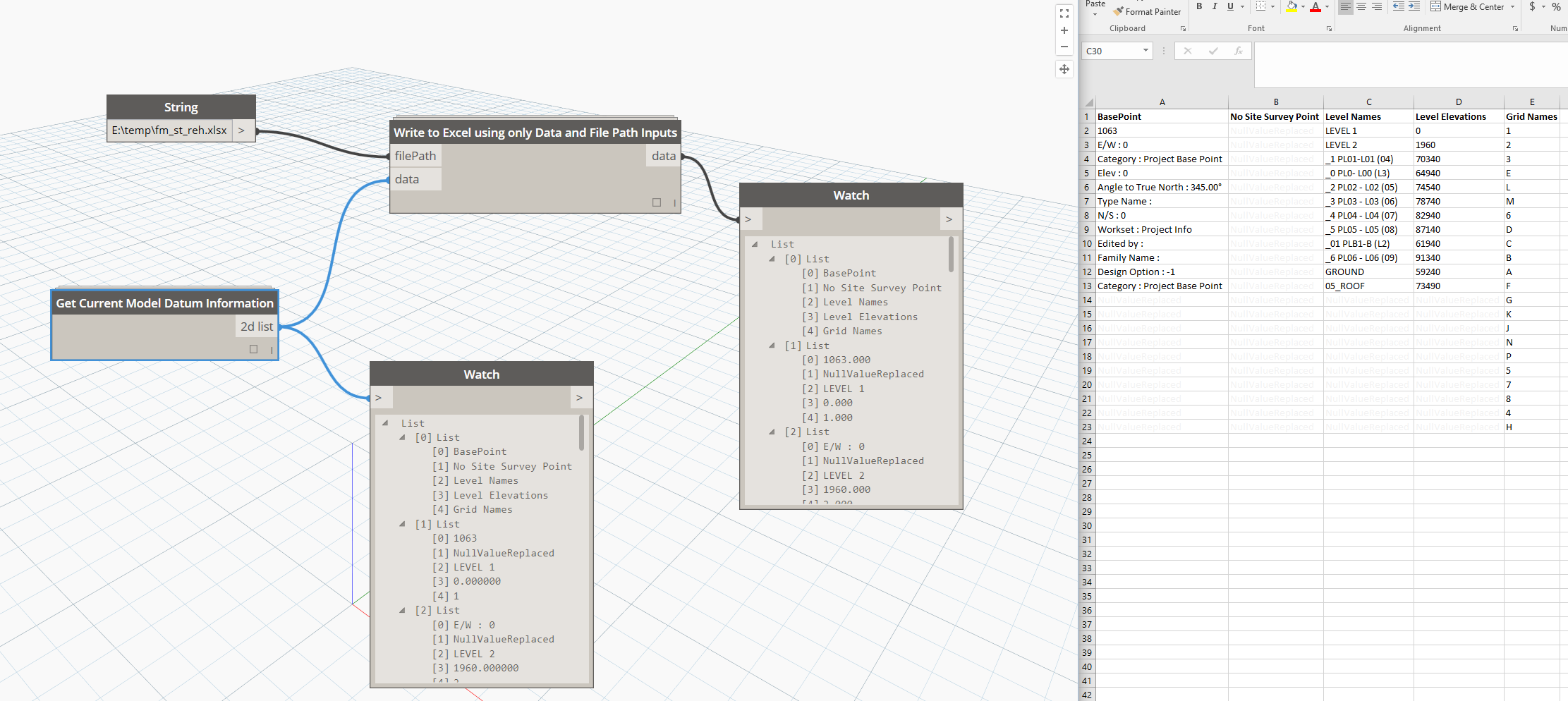
Get Current Model Datum Information

When starting on a new project, you will be immediately interested in the site Datums: such as Levels, Grids and Base Points. If you receive a Revit model as a basis for your own work, it may be useful to quickly export the information from these Datums to Excel. This node takes no inputs, and works from the current model to create 2D list of BasePoint, Level information, and Grid names.

If information is missing from the output list, or to ensure matching row lengths, it simply generates a “NullValueReplaced” value, which you can then Find / Replace to delete once you are in Excel.

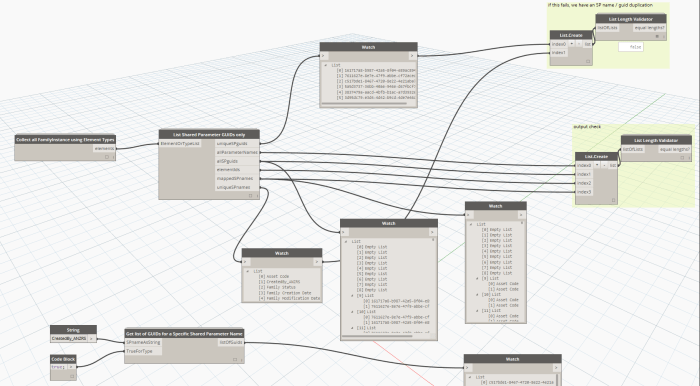
Get list of GUIDs for a Specific Shared Parameter Name

This is an alternative way to summarize the Shared Parameter configuration for the current Revit document. This version checks through a list of family instances in the current project and attempts to get the Shared Parameter GUIDs from them, and then simply returns a list of Shared Parameter GUIDs that match the input SPnameAsString. The Boolean input TrueForType allows you to switch between checking Instance or Type Parameters. As can be seen below, the Asset Code parameter in this model has incorrectly been added twice, and there are two different GUIDs for the same Shared Parameter, which is not good J

Note: future version of this node should work on the Document level, not doing the Family Instance iteration that it does currently.

List Shared Parameter GUIDs only

When auditing a Revit model, it is often important to confirm that Shared Parameters have been added correctly. The key piece of information for each Shared Parameter is the ‘GUID’. You can have multiple Shared Parameters in the same model, with the same name, but different GUIDs. This node aims to list shared parameter information using an Element or Type list as input. It iterates through the input list and reports a number of key pieces of information:

· allParameterNames – a list of Parameter names that includes non-Shared Parameters

· mappedSPnames – a list which matches the input list length but only shows Shared Parameter names by element

· allSPguids – a list which matches the input list length but only shows Shared Parameter GUIDs by element

· uniqueSPguids – a short list of all unique Shared Parameter GUIDs that are applied to the input element list

· uniqueSPnames – a short list of all unique Shared Parameter names that are applied to the input element list

· elementIds – the input element list Element Ids
Set Worksharing Display Mode for Views on Sheets

This takes two inputs:

· part of a Sheet Number

· Worksharing Display Mode name (string, default value is ‘Off’)

Then, it will collect all the Views on Sheets that contain that Sheet Number, and it will then attempt to set the Worksharing Display Mode for those views to the desired mode that was input. It will report true/false in the Set OK? Output. Also, the ListOfAllModes output shows all of the Worksharing Display Modes that are available in this project.

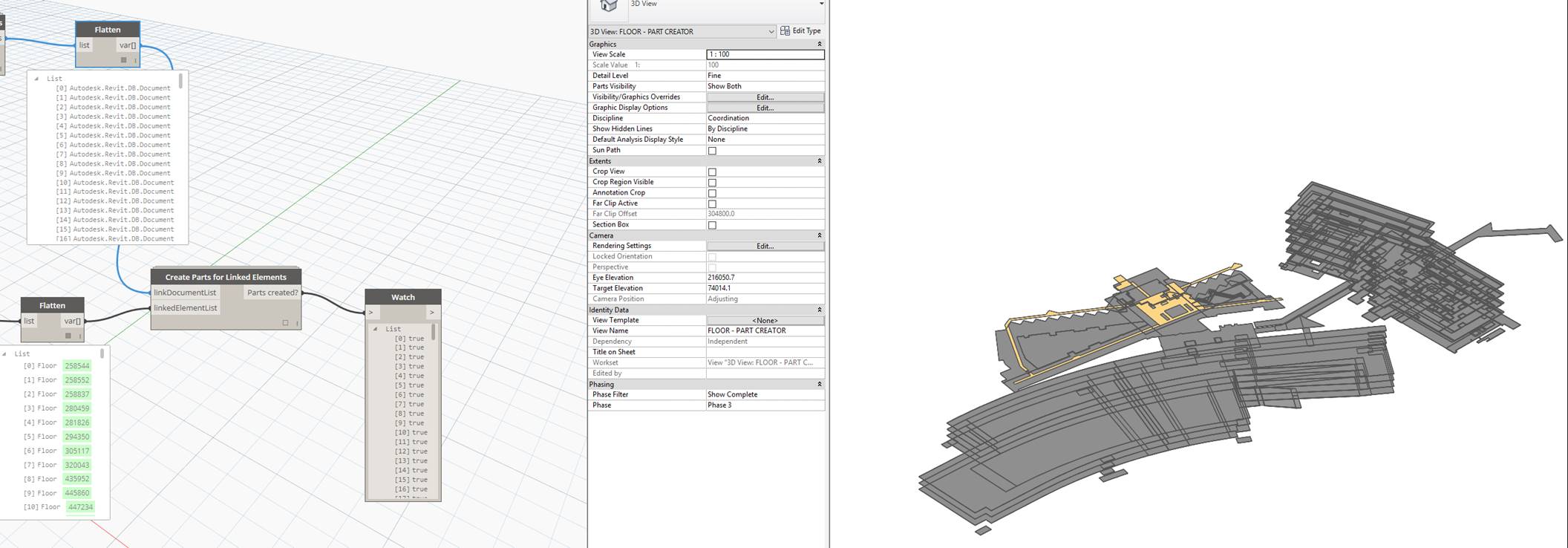
Create Parts for Linked Elements

Using a List of elements from Linked Documents, and a 1:1 matching length list of Document objects, this node will attempt to Create Parts in the current document for each linked element. It will report True if successful, False if it fails. Note: This first version only handles situations where there is one Link Instance for each Link Document.