
This node allows the user to select a Directory by browsing the directory tree of the computer. As shown below, the output of Directory Path is essentially the same as the String path to a Directory.

This node allows the user to select a Directory by browsing the directory tree of the computer. As shown below, the output of Directory Path is essentially the same as the String path to a Directory.
In this workflow, you simply input a Directory Path and it will get all the node names of the DYF files in that folder, and send them directly to Clipboard. For the Clipboard integration to work, it must be run from a Revit-Dynamo instance (not in Sandbox mode).
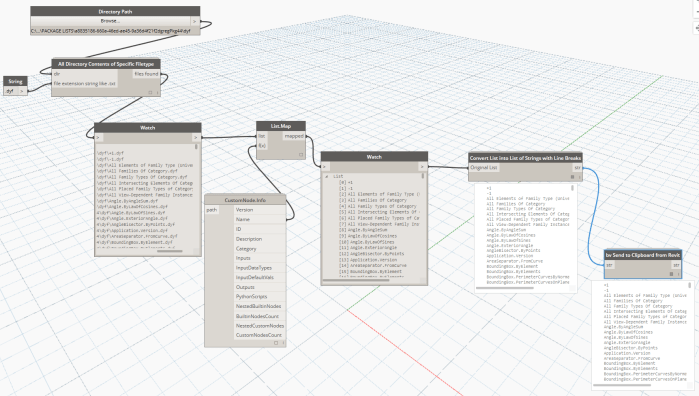
Following this, you can switch to another application and use Ctrl+V to Paste the data. If you want to create tasks in Asana from these line items, paste it temporarily in Notepad and then Cut-Paste 100 items at a time directly into the Asana task list.
This will take the File Path to a dyf file as input, and return many properties of that node. In the example below, List.Map is used to iterate through and return only the Node name.

This will check a directory for files of a given filetype, then pass a flat list of files that have that extension. In the example below, all files with the .dyf extension are listed from the Directory Path. This can be run in Dynamo Sandbox mode.

This will give you a summary of nodes you have installed in your Dynamo Packages folder.
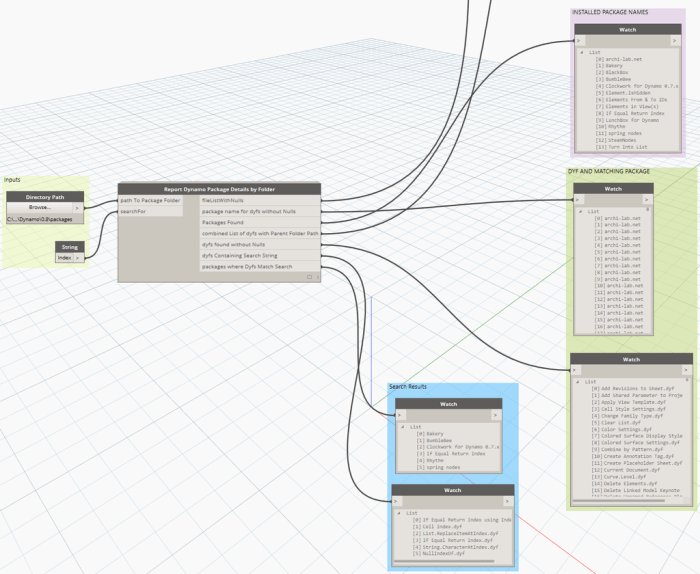
Source: https://twitter.com/lukeyjohnson/status/657367093113933824
 Dynamo Nodes