
This converts the GUID from the IFC version to the .NET version.

This converts the GUID from the IFC version to the .NET version.
This node is an adaptation of code at https://github.com/hakonhc/IfcGuid/blob/master/IfcGuid/IfcGuid.cs

This node grabs the ID values from two IFC files and tries to report the new or deleted items.
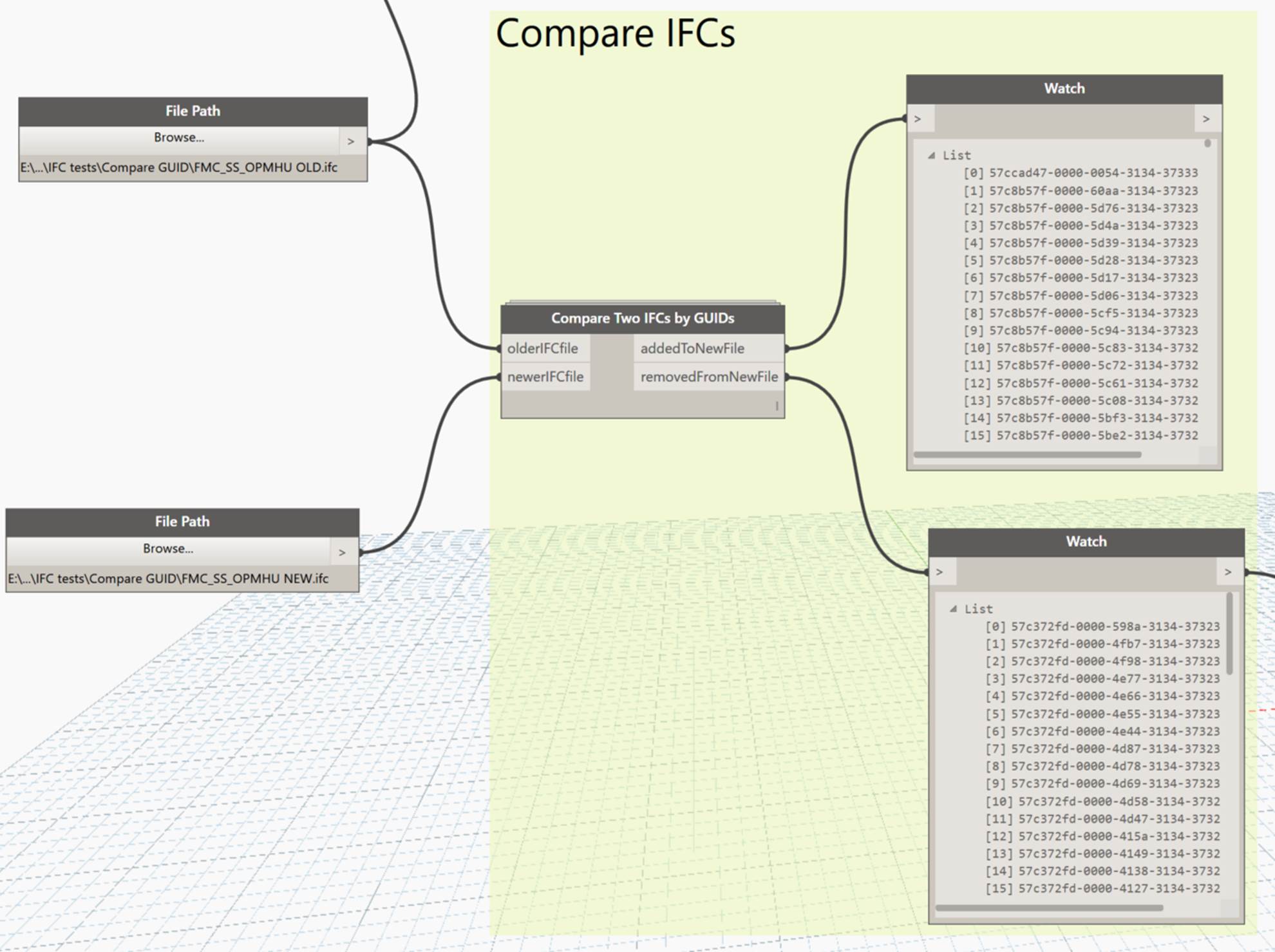
This node snips out the ‘ID’ component from an IFC file through simple text methods.

I found some Python IFC schema reading code and adapted it for use in Dynamo. It took a bit of work and isn’t perfect yet, but basically it just takes a path to an IFC file, and a schema definition, and attempts to unpack the information from the IFC file into lists.
The original code was set up to search by dictionary method (which would be faster), but I kept hitting some errors because the schema defines more attributes than are typically defined by a Revit IFC export. I have output these attribute discrepancies in the ‘attribute read status output’. In the end I made some ‘long lists’ which could be queried in various ways.
So the outputs are:
Here are the basic outputs:

Logging:
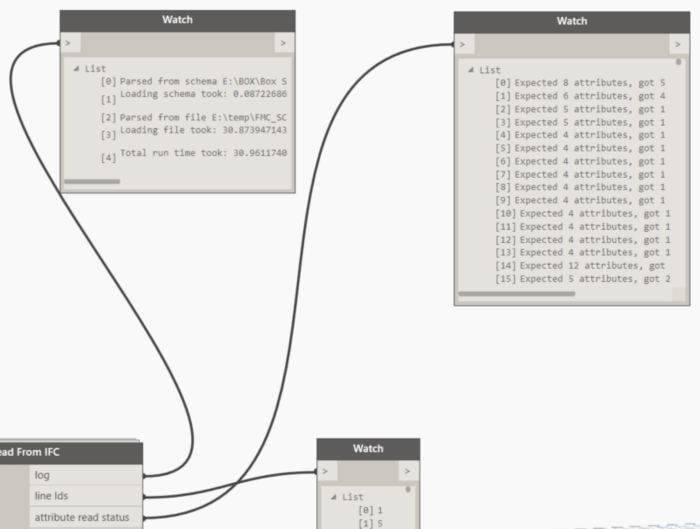
As the main lists are all matched with the amount of lines in the IFC, you can then do filtering and other operations:


I was also looking at making a Dynamo to BimServer connector, possibly adapting this code: https://github.com/aothms/python-bimserver-client(but I didn’t do that yet 🙂
This node will be available in Bakery package, in the IFC group.
I had a simple question recently: How do I get some DWG or DXF geometry into Dynamo to do some simple tasks, like placing families at points in Revit?
I looked for the DWG import nodes, until I realised they only come with Dynamo Studio. Then I realised that Dynamo Studio doesn’t run on top of Revit. Weird, huh?
Then, I came across this little offhand comment from John Pierson:
You can import in Revit> select file> and query geometry.
It can’t be that easy, can it? Yes, it can!
Just like this:

So, by simple selecting the Link or Import element in Revit, we can use Element.Geometry to unpack its geometry. This method would likely work with any other CAD format that Revit can Link or Import, such as SAT, SKP or DGN.
I had tried some more challenging workarounds like going via Flux, but sometimes the easiest option is the best.
This node will take a list of view filters, and a single view, and apply those filters to the view.
The Boolean switch determines if the filter will be automatically ‘unticked’ when it is applied. Setting false will untick, effectively hiding elements that match those filters.
Future versions could look at applying more complicated colour overrides to each filter.

This node will take a filter element and then remove all of the rules, basically just leaving a view filter that has the Category ticked. These ‘category’ filters can be useful for various things, like this Parts override.

This creates a simple view filter based on the following inputs:
· Categories
· A built in parameter name (not the same as a natural parameter name)
· A parameter value
· Desired filter name
The filter element can then be applied to Views or View Templates.

The type of filter created is a simple “Contains” rule. However, the code could be modified and extended to handle all of the various rule factory conditions (see here).

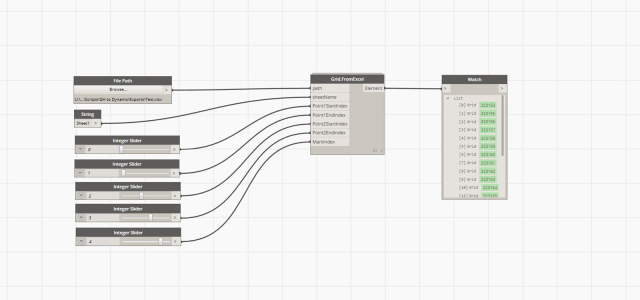
Export grids from Grasshopper to Excel and use the ‘Grids.FromExcel’ to generate native Revit grids.
It uses a specially formatted Excel file that has the Grid endpoints and Grid identifier as values.
Source: Grids from Excel
 Dynamo Nodes