Workflow Repost: Tekla Structural Model to Excel to Revit with Dynamo

This comes via Jia-Lin Chou on LinkedIn at this Source Link

In Tekla

1. Manage → Organizer to open project organizer

2. Open Settings to create new template


3. Create new Template, create new Columns, search the following Properties:
[ Name, Number, Start_X, Start_Y, Start_Z, End_X, End _Y, End _Z, Height, Width, Profile ]

4. Select all element of the model, then Export data to Excel

In Excel

1. Save as new table sheet file, delete Row 1 ~ 4,
Sort Name Column to each new sheet

2. For Position data, delete other data Column except Start and End X, Y, Z

In Dynamo

1. Create Point, Line for Structural System (girder, beam) from excel file

2. Create another Point, Line for Structural Column with the same workflow

Dynamo nodes capture 1:
Dropbox picture

In Revit (with Dynamo add-in)

1.Create a Code Block list depending on the levels.
(can just ignore the typical levels)
2. Filter to divide each part from levels
(repeat this step to create each level’s filter list)

3. StructuralFraming.BeamByCurve
(do not create the entire model, do only for the non-typical levels)
(you can also filter and sort more frame lists to create different types by step.2)

4. Create the columns with the same workflow

Dynamo nodes capture 2:
Dropbox picture

Next time I’ll write the rest part of Number and Profile dimension linking.


Dynamo sample file download link:
Dropbox share

Switch

This node simply takes an input set of data, and a Boolean switch. If the switch is true, the data is output. If the switch is false, the output is Empty List. This can be added to control the running of a script with master Boolean switches, or inline validation. In the case below, the List Length Validator confirms the input data has matching lengths, and the true output is used to control the flow in the Switch node.

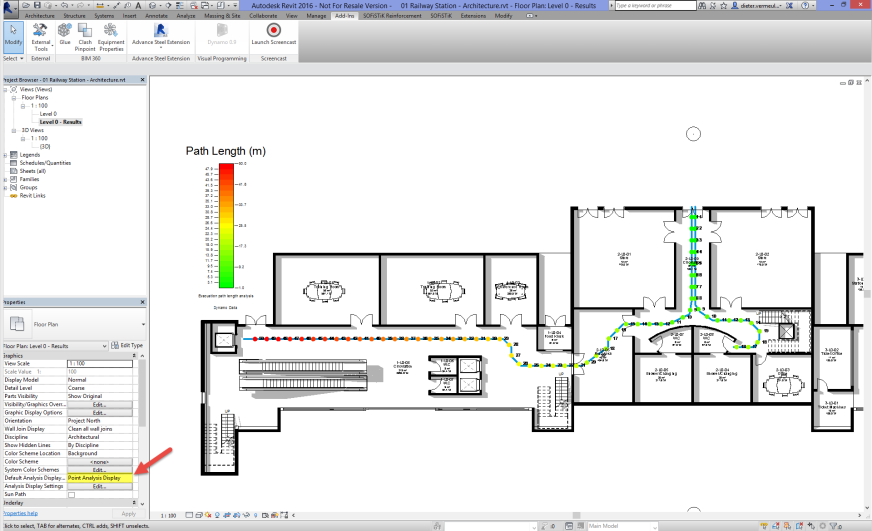
Workflow: Analysis of Evacuation Path Model Lines

Revit Beyond BIM has posted the steps and packages necessary to perform analysis on some model lines in Revit that represent the evacuation path. Also, Dynamo is used to create an analysis display for the accumulated distance of travel.
Evacuation Path Analysis - 06

You can download the Revit file and Dynamo script by clicking on this link.

Source:
https://revitbeyondbim.wordpress.com/2016/04/22/evacuation-path-analysis-with-dynamo/

Get View Dependent Elements from Linked Document

This will get view dependent elements (like Detail Items such as Filled Regions) from a linked document. Inputs:

· Linked document filename as string

· Category name

· Type name (results are filtered to include only this type)

· The “owner view” or the view that these elements live inside in the linked document

Batch Export Revit Views to IFC

This node takes 3 inputs:

  • View prefix for views you want to export to IFC
  • Target directory for the IFC files
  • Optional: IFC version, current default is IFC2x3

When the node is Run, it filters through the Revit views to find those with the specified prefix, then it exports them as individual IFC files to the target directory. You could combine this with Web Request node to enable periodic execution (ie. automatic batch export).

Full credit goes to those who put the framework of this together over on the forum (also see ‘Credits’ in image below).