Resource: Node Book for Dynamo (download)

There are a number of efforts out there that share some of the purpose of Dynamo Nodes. For instance, the Dynamo Primer lists details of certain core nodes, as does Enjoy Revit for list actions.

Obviously, Dynamo Nodes aims to be a unified portal for Nodes, which includes Custom and Core Nodes, along with the opportunity to Search, Tag, Rate, and Comment on specific nodes and their use.

A similar indexing or glossary effort was undertaken by Thomas Vogt, and his work has been collected in a Node Book for Dynamo. You can download the Node Book for Dynamo v2 at:
https://www.dropbox.com/s/ws30t8uhtlx8jqq/Node-Book_for_Dynamo_v2.xlsx?dl=0

I would sincerely encourage anyone who wants to work on a glossary or index like this to contact me and I will invite you as a Contributor here on Dynamo Nodes. If we work together we will be able to make and maintain the best resource for Dynamo Nodes on the web.

Quote from Thomas Vogt:
This is a new version of the node book, but I have no time to completely finish it. Maybe some of you can use it anyway for something… https://www.dropbox.com/s/vlbo5axawtllgpk/Node-Book_for_Dynamo_v2.xlsx?dl=0

Source:
https://www.linkedin.com/groups/6510470/6510470-6114521488193261570
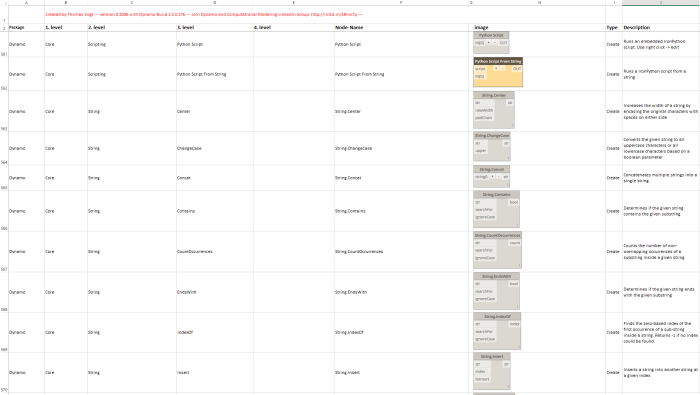
nodebook

Element.SetName

This node simply takes a list of Revit elements and attempts to set a new name to each of them. Given a list of elements and a list of names, it will set the corresponding name to the elements.

Workflow Repost: Line Of Sight Analysis with Revit and Dynamo

Excellent post by Dieter Vermeulen describing how to use Revit and Dynamo to analyze and report on ‘line of sight’ using a Revit family and some nice vector nodes. You can download the resources from this link.

Quote:
When a structural engineer, like me, hears or reads the word “analysis” then you will get full attention. That happened when I was discussing some architectural topics with my colleague…

Source: Line Of Sight Analysis with Revit and Dynamo

Create Navisworks Search Set XML for Element Ids

This node is an early proof of concept to demonstrate how a Navisworks search set xml can be built using Dynamo, running from the Revit environment. This example takes an element Id list, and then builds the XML using Core String and WriteToFile nodes. It can then be imported and used in Navisworks.

Check DYF folder for Dependencies in Package Folders

This node is primarily a package audit and management tool. Given a folder (containing dyf files), it will attempt to get the dependencies, then compare that with all node names in the Package folder and subfolders. Then, it will list the Package Name and Node name of dependencies found in the Directory Path. This can be used to find and remove dyf dependencies from your Dynamo package.

Revit Section View at Line

In large models, Revit can be agonisingly slow to regenerate when trying to draw a new Section View (it is usually trying to detect the required view depth). This node was created to quickly make section views by selecting Line elements in Revit. Here’s how to use it:

1. Open a Plan where you can see Revit Lines

2. Open Dynamo

3. Place the Revit Section View at Line node

4. Set desired View Depth (Far Clip Offset)

5. Set desired View Height (the base of the section will likely be Floor Plan level, with top of the section based on this value)

6. Set FlipSection to true if you want to rotate the plane through 180 degrees (effectively flipping the section)

7. Use “Select Model Elements” or a similar element collection node or method to feed a list of Detail Lines and/or Model Lines into the revitLines input

This initial version has been set up for Sections intended to be visible on Plan views, and will not work in other planar situations (such as running from an Elevation). Future versions could look at working on any Line in any view, and possibly allowing any plane Rotation (such as 90 degrees for perpendicular sections).

Note: you may have to press Run twice to make it work, depending on your version and system?

This screencast shows the node in action:
https://knowledge.autodesk.com/community/screencast/e316f8ef-9bab-4857-be9d-8562191a0024

Workflow: Get Parameters from Part Parents and Write to Parts

Using a selection of nodes to gather the parents of given Parts in the Revit model, we can also get parameters or properties from the Parents and write them into the Parts themselves. For example, we could obtain the Level of the linked Parent Floor Elements for a set of Parts, and then write that into the Comments parameter of the Parts themselves.

The images below show this idea in action: