Read From IFC

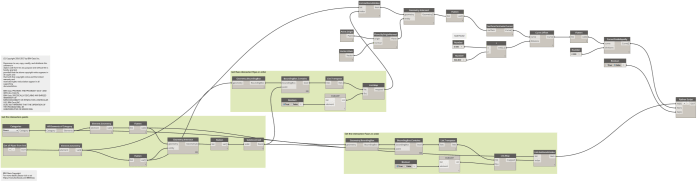
I found some Python IFC schema reading code and adapted it for use in Dynamo. It took a bit of work and isn’t perfect yet, but basically it just takes a path to an IFC file, and a schema definition, and attempts to unpack the information from the IFC file into lists.

The original code was set up to search by dictionary method (which would be faster), but I kept hitting some errors because the schema defines more attributes than are typically defined by a Revit IFC export. I have output these attribute discrepancies in the ‘attribute read status output’. In the end I made some ‘long lists’ which could be queried in various ways.

So the outputs are:

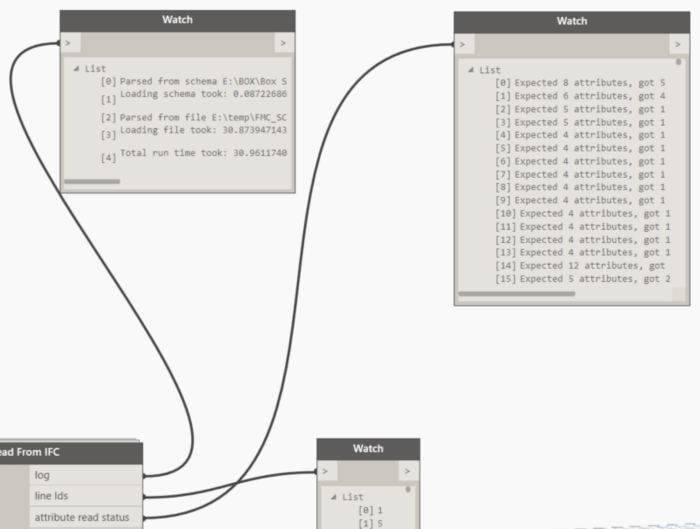
  • log – a log of the reading of the schema and the IFC file
  • attribute read status – comparison between schema and actual attributes in the IFC file
  • line Ids – the id of the line from the IFC text data
  • IFC name – the name of the line from the IFC text data
  • attributesFromSchema – the official attributes defined for that IFC name
  • attribute values – values from the line, as searched by the attributesFromSchema

Here are the basic outputs:


Logging:

logs

As the main lists are all matched with the amount of lines in the IFC, you can then do filtering and other operations:


I was also looking at making a Dynamo to BimServer connector, possibly adapting this code: https://github.com/aothms/python-bimserver-client(but I didn’t do that yet 🙂

This node will be available in Bakery package, in the IFC group.

Workflow: Import Geometry to Dynamo from CAD Link

I had a simple question recently: How do I get some DWG or DXF geometry into Dynamo to do some simple tasks, like placing families at points in Revit?

I looked for the DWG import nodes, until I realised they only come with Dynamo Studio. Then I realised that Dynamo Studio doesn’t run on top of Revit. Weird, huh?

Then, I came across this little offhand comment from John Pierson:
You can import in Revit> select file> and query geometry.

It can’t be that easy, can it? Yes, it can!

Just like this:

So, by simple selecting the Link or Import element in Revit, we can use Element.Geometry to unpack its geometry. This method would likely work with any other CAD format that Revit can Link or Import, such as SAT, SKP or DGN.

I had tried some more challenging workarounds like going via Flux, but sometimes the easiest option is the best.

Add View Filters to View

This node will take a list of view filters, and a single view, and apply those filters to the view.

The Boolean switch determines if the filter will be automatically ‘unticked’ when it is applied. Setting false will untick, effectively hiding elements that match those filters.

Future versions could look at applying more complicated colour overrides to each filter.

Create View Filter

This creates a simple view filter based on the following inputs:

· Categories

· A built in parameter name (not the same as a natural parameter name)

· A parameter value

· Desired filter name

The filter element can then be applied to Views or View Templates.

The type of filter created is a simple “Contains” rule. However, the code could be modified and extended to handle all of the various rule factory conditions (see here).

Workflow: Create Rectangular Wall Opening for Horizontal Pipes from a linked file in Revit 2016 using Dynamo 0.9.2

In our previous tutorials we showed how to:
The workflow assumed that the model contains all trades in one file. But most of cases each trade exists in its own file and based on the linking technique used in your firm the relation between the trades projects defers.
In this example I assumed that the architecture linked the piping file to the base model project, because most of cases the architect will be the responsible for making the opening in the walls of his model.
Nothing changed from the Create Rectangular Wall Opening for Horizontal Pipes in Revit 2016 using Dynamo tutorial except the technique of getting the pipe elements. In the previous tutorials we addressing the pipe elements directly from the current model, but now we will access them through the Link file.
The “Get all Pipes from link” Node is pure Python Script that get the link documents from the current project then collect the Pipes Category and set them as its output. The workflow then continues as it is in the Create Rectangular Wall Opening for Horizontal Pipes in Revit 2016 using Dynamo tutorial.
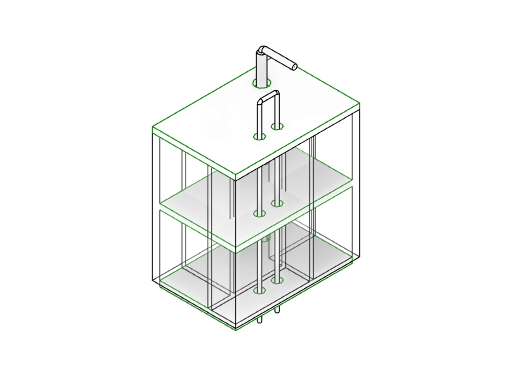
Wall Opening for Pipes - Rectangular - link
The sample Revit project files:
The Dynamo Workflow can be downloaded from here.

Workflow: Create Floor Opening for Vertical Pipes from a linked file in Revit 2016 using Dynamo 0.9.2

In our previous tutorials we showed how to:
The workflow assumed that the model contains all trades in one file. But most of cases each trade exists in its own file and based on the linking technique used in your firm the relation between the trades projects defers.
In this example I assumed that the architecture linked the piping file to the base model project, because most of cases the architect will be the responsible for making the opening in the walls of his model.
Nothing changed from the Create Floor Opening for Vertical Pipes in Revit 2016 using Dynamo tutorial except the technique of getting the pipe elements. In the previous tutorials we addressing the pipe elements directly from the current model, but now we will access them through the Link file.
The “Get all Pipes from link” Node is pure Python Script that get the link documents from the current project then collect the Pipes Category and set them as its output. The workflow then continues as it is in the Create Floor Opening for Vertical Pipes in Revit 2016 using Dynamo tutorial.
Floor Opening for Pipes - link
The sample Revit project files:
The Dynamo Workflow can be downloaded from here.

Platform Update: Dynamo 1.1.0 Released

You can download the new version now at:

http://dyn-builds-data.s3-us-west-2.amazonaws.com/DynamoInstall1.1.0.exe

Official blog post

Release Details (from Readme):

### 1.1.0 ###

New Functionality :
– A whole new bunch of Library added for T-Spline Nodes. You can turn on this option from Settings to view the T-Spline nodes in Library. T-Splines modelling technology is now exposed in Dynamo to enable new organic and freeform geometry creation tools. There are approximately 150 new nodes that are a subset of the existing geometry library. Since this is an advanced functionality that may be useful only in certain non-standard workflows these nodes by default will be hidden in the library and will not interfere in node search results unless explicitly turned on in the Settings -> Experimental menu. The new functionality offers a wide range of capabilities to create and edit T-Spline surfaces and also conversion to and from NURBS and meshes.
– New notification center provides you with more details on system crashes and errors, such as when DLL incompatibilities between Dynamo and other Revit Addins are detected at startup
– New Settings menu option to Show or Hide Preview Bubbles
– We have fixed the long pending issue of Screen Capture, now it doesn’t matter how big your graph is, everything will be visible  at whatever zoom level you are at when you use Export Workspace as Image.

Important Bug Fixes:
– Element Binding (the ability of Dynamo to track and modify rather than duplicate or replace elements in Revit) had some regressions in Revit 2017.  These are fixed.
– Freeze does not delete elements created in Revit anymore.
– Fixed issue related to FamilyInstance.SetRotation, now you can use this node with Run Automatic mode as well and your first instance won’t get placed randomly in a different location and crash issues have been addressed
– Fixed long pending issue with Importing series of Swept Solids, Now while after importing all Surfaces are there.
– Localization crash fixes with Norwegian, German and French
– Dynamo for Revit no longer crashes at startup with non-compliant Views (not 3D)
– When selecting any labeled item only that item’s label gets displayed, no additional labels are displayed
– Fixed errors on Code Block Nodes and String Nodes that are published to Web and accessed from the Customizer view
– Read-only nodes and directories can now be loaded in Dynamo.
– Mapping flatten nodes and flatten on single values no longer replaces data with null values
– Arc.ByStartPointEndPointStartTangent no longer fails using a normalised vector
– Direct Shape now recognizes material input properly
–  /verysilent install of Dynamo for Revit now completes without user interaction
–  Fixed crash with closed curve as input to Surface.ByLoft
–  Dot product no longer returning erroneus scalars
–  Zero radius and related bad geometry errors no longer create crash
–  Turning off “Revit Background Preview” no longer turns off “Background Preview” on relaunch of Dynamo.

Other Changes:
– Now once you add a new path for Package location then all the packages from the new path will get loaded without relaunching Dynamo.
– We have improved the preview bubble for its Pin and hover over related issues.
– Updated the compact view of the preview bubble to display information about the number of items in an output list.
– Quick Access to “Getting Started” from Help menu
– From this release, we stopped migrating of 0.6.3 and 0.7.0 files. If your old files contain nodes from above two releases then you have to open those files on an earlier version (till 1.0.0) and the save them.

Known Issues:
– Installing Dynamo 4 Revit 1.1 Will require a reinstallation of Dynamo Studio with Studio 1.1 (1.0 and 1.1 cannot co-habitate).  This issue will not happen in the future, when Future Dynamo Core installation will work with older versions of Products.
– Simplification of some overload methods will result in minor changes in behavior.  Please see this document for specific nodes affected: https://github.com/DynamoDS/Dynamo/wiki/Dynamo-Node-Changes


The in-product upgrade should automatically download the new version to your Temp directory for install, like: