Create Rectangular Wall Opening for Horizontal Pipes in Revit 2016 using Dynam 0.9.2

First of all thanks for all the fans for the reviews, comments and following up. This topic is prepared as a special request for my followers on LinkedIn, DynamoNodes and Facebook.
In our previous tutorials we showed how to:
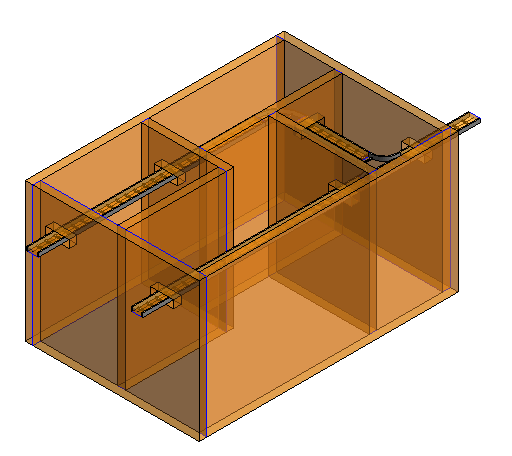
In today’s tutorial we will make a little tweak for the Create Wall Opening for Cable Tray in Revit 2016 using Dynamo workflow to perform the rectangular wall opening for horizontal pipes.
The example will use the Revit’s standard rectangular wall opening. Depending on the radius of the pipe the width and height of the opening will be set.
Wall Opening for Pipes - Rectangular
The workflow file can be downloaded from here
Workflow: Create Floor Opening for Vertical Pipes in Revit 2016 using Dynam 0.9.2

As we saw in the previous lessons Create Wall Opening for Cable Tray in Revit 2016 using Dynamo and Create Wall Opening for Ductwork in Revit 2016 using Dynamo it is possible to make opening in Walls for cable trays and ductwork in Revit 2016 using Dynamo.
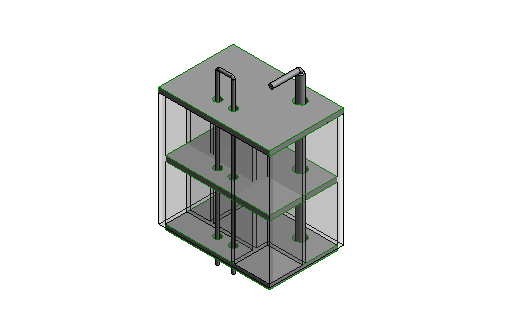
In today’s lesson we will see how to make openings for Pipes but this time in Floors. All you want to do is to select the Pipes Category and the Floors Category.
Dynamo should determines the intersection surfaces and hence the edges of the surfaces.
We choose in this example to make circular openings.
To control the diameter of the circular opening an offset from the intersection curves shall be done.
Once we determined the radius we can let the Python Script do the rest of the magic.
Create Floor openings for Pipes
You can download the Dynamo workflow from here

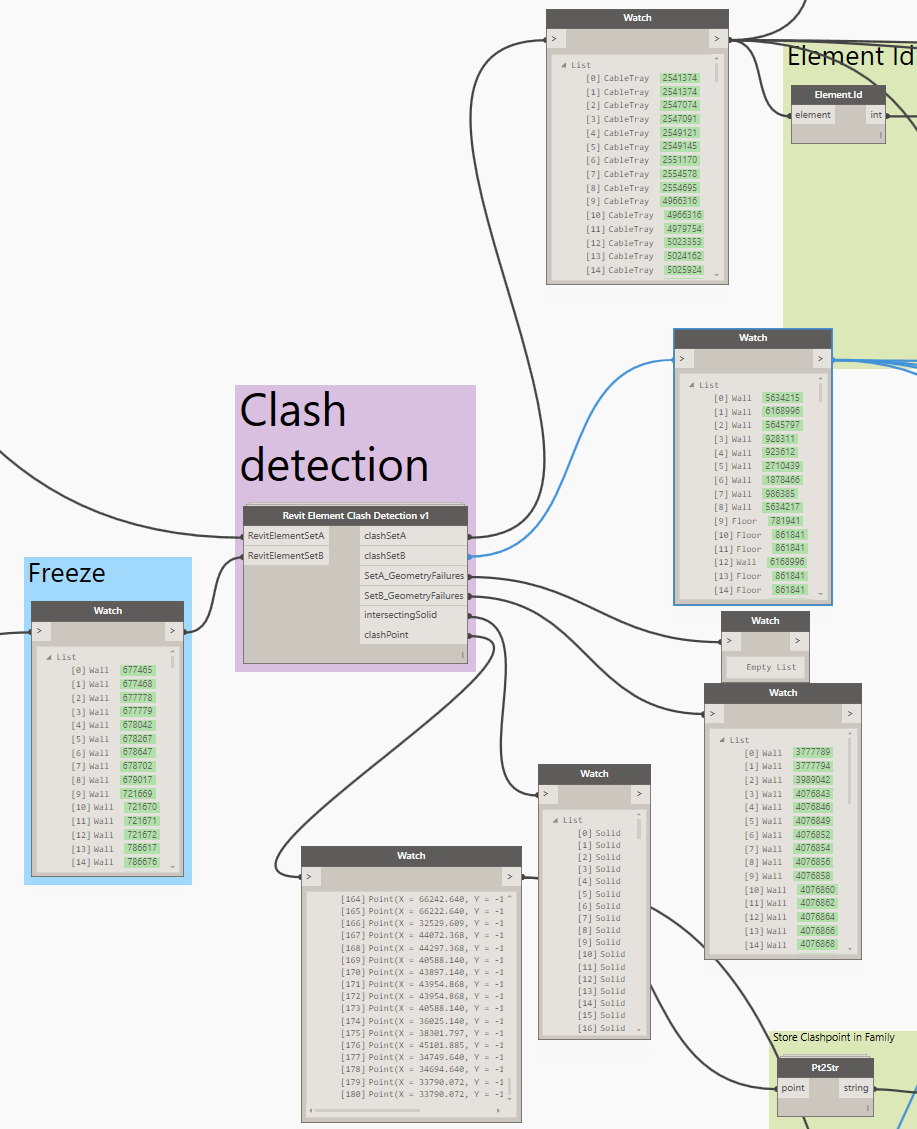
Revit Element Clash Detection v1

We can easily use builtin nodes like Element.Geometry, Geometry.DoesIntersect and Geometry.Intersect to put together a simple clash detection process in Dynamo. However, these geometry nodes bring some processing overhead.

To speed things up, I packaged it all into a Python Script in this node. Basically, it doesn’t have to unpack or ‘draw’ the actual element geometries, so the performance should be better than the standard nodes.

Inputs:

· RevitElementSetA – the first set of elements

· RevitElementSetB – the elements to clash against set A

The node does a full cross-product check to find the clashes.

Outputs:

· clashSetA – elements that clash with same index in set B

· clashSetB – elements that clash with same index in set A

· SetA_GeometryFailures – instances where Element.Geometry (pythonic / api) failed to make a geometry

· SetB_GeometryFailures – as above

· IntersectingSolid – the full geometry intersection between the two clashing elements

· clashPoint – the centroid of the intersectingSolid

This will be made available in Bakery package.

Future versions will likely be ‘chasing more speed’.

Workflow: Create Wall Opening for Cable Tray in Revit 2016 using Dynamo

In the previous lesson Create Wall Opening for Ductwork in Revit 2016 using Dynamo we saw how to create wall openings for ductwork in a project. In today’s lesson we will do the same exercise but this time for cable trays.
First we get all the wall elements and the cable tray elements in the project then get the intersection points between them. As we got the intersection points we need to determine the direction at which the opening shall be placed.
One important point that has bee raised from one of the page’s fans yesterday was that the size of the opening is constant, so now by adjusting the “Size Factor” Node we can control the size of the opening as a function in the dimensions of the cable tray (or duct).
The Revit API and hence Dynamo are using the Feet as its standard measuring units, so in some cases we need to correct the units by multiplying the lengths by conversion factor.
In our case the Revit project units are in mm so I multiplied the lengths came from the Dynamo calculations by 304.8 to convert from Feet to mm.
At the end by using the Python code block we make the magic happen.
Create wall openings for cable tray
You can download the Dynamo workflow from here

Workflow: Create Wall Opening for Ductwork in Revit 2016 using Dynamo

Hi folks!
Have you ever in Revit find it so tedious to track all the clash points between different disciplines and the architecture elements to address them.
Now with Dynamo you can do it so easy. Today’s workflow shows how to find the intersection points between ducts and the walls then using a simple python script we can add the wall opening in the proper position with an arbitrary width and height.
The image of the workflow may not be so clear so I’ll attach the dyn file.
Create wall openings for ductwork
You can download the Dynamo workflow from here