List.FilterByBoolMask

This takes a list of Booleans (true and false values) as a mask input, and another list as the ‘list to filter’. It then outputs an in list (where the Boolean result was true), and an out list (where the Boolean result was false). This works most reliably with matching length input lists.

String.Contains

This allows you to search a string for the existence of another string fragment inside it. It optionally can ignoreCase (default is to do a Case Sensitive search). It can work with List input at the str Input connection, and it outputs a boolean true / false list that can be used to filter other results.

SteamNodes Node Index

Maintained by Julien Benoit

Analytical.CreateLineBoundaryCondition
Analytical.CreateLineLoadBeta
Area.CreateAtPoint
Area.CreateAtUV
Area.CreateFromPlanCircuit
Element.3DCropViewTopBaseOffset
Element.Create 3D Cropped view
Element.GetFromLinkedFile
Element.GetParts
Element.IsTagged
Element.MakeParts
Element.Parts.Getparents
Element.SelectInView
Element.TypeName
List.FilterByString
List.Operations
Parts.ElementsAreValidToCreateParts
Parts.Genealogy
Parts.Getparents
Parts.IsFromLinkedElement
Schedule.GetCalculatedValues
Schedule.GetTextFromHeader
Tool.AddVoidCut
Tool.AlignSheetViewsFromTemplateSheet
Tool.AssemblyViews
Tool.CreateAssembly
Tool.CreateEmptySheet
Tool.CreateRoomAtPointAndLevel
Tool.ElementsInGroup
Tool.Eraser
Tool.EraserByName
Tool.ExportDWF
Tool.GetLineStyleByName
Tool.GetPhaseByName
Tool.GetRevitSelection
Tool.GetSurroundingElements
Tool.IntersectionChecker
Tool.PhysicalBeamToAnalytical
Tool.PlaceGroupAtPoint
Tool.RemoveVoidCut
Tool.RenameAssembly
Tool.RunMe
Tool.Toggle
Tool.UnusedTypes
Tool.UpdateString
View.ApplyViewTemplate
View.CropView
View.GetViewport
View.ViewPortBoxCenter
Viewport.SetBoxCenter
ViewSchedule.GetColumnWidth
ViewSchedule.SetColumnWidth
Wall.GetTotalWidth

Rhynamo Node Index

Maintained by Nathan Miller. More information at http://provingground.io/tools/rhynamo/ and code on Bitbucket at https://bitbucket.org/archinate/rhynamo
Rhynamo is an open source Dynamo (0.9) node library for reading and writing Rhino 3DM files

Library Name In Canvas Name
RhinoApp LiveRhino.RhinoApp
RhinoCommand LiveRhino.RhinoCommand
Get_RhinoFile OpenRhino3dmModel.Get_RhinoFile
Get_DocumentObjects RhinoObject.Get_DocumentObjects
Get_RhinoLayerNames RhinoObject.Get_RhinoLayerNames
Get_RhinoObjects RhinoObject.Get_RhinoObjects
Get_RhinoObjectsByLayer RhinoObject.Get_RhinoObjectsByLayer
Get_HatchPatternAttributes RhinoObjectAttributes.Get_HatchPatternAttributes
Get_LayerAttributes RhinoObjectAttributes.Get_LayerAttributes
Get_LinetypeAttributes RhinoObjectAttributes.Get_LinetypeAttributes
Get_MaterialAttributes RhinoObjectAttributes.Get_MaterialAttributes
Get_RhinoGeometryAttributes RhinoObjectAttributes.Get_RhinoGeometryAttributes
Get_UserDictionary RhinoObjectAttributes.Get_UserDictionary
Get_UserDictionaryValue RhinoObjectAttributes.Get_UserDictionaryValue
Get_UserStrings RhinoObjectAttributes.Get_UserStrings
Get_UserStringValue RhinoObjectAttributes.Get_UserStringValue
Get_ViewAttributes RhinoObjectAttributes.Get_ViewAttributes
Rhino_AllGeometryToDS RhinoTranslationToDS.Rhino_AllGeometryToDS
Rhino_ArcsToDS RhinoTranslationToDS.Rhino_ArcsToDS
Rhino_BrepsToDS RhinoTranslationToDS.Rhino_BrepsToDS
Rhino_CirclesToDS RhinoTranslationToDS.Rhino_CirclesToDS
Rhino_ColorRGB RhinoTranslationToDS.Rhino_ColorRGB
Rhino_CurvesToDS RhinoTranslationToDS.Rhino_CurvesToDS
Rhino_ExtrusionToDS RhinoTranslationToDS.Rhino_ExtrusionToDS
Rhino_LinesToDS RhinoTranslationToDS.Rhino_LinesToDS
Rhino_MeshToDS RhinoTranslationToDS.Rhino_MeshToDS
Rhino_NurbsCurvesToDS RhinoTranslationToDS.Rhino_NurbsCurvesToDS
Rhino_NurbsSurfaceToDS RhinoTranslationToDS.Rhino_NurbsSurfaceToDS
Rhino_PointsToDS RhinoTranslationToDS.Rhino_PointsToDS
Rhino_PolyCurvesToDS RhinoTranslationToDS.Rhino_PolyCurvesToDS
Rhino_PolylinesToDS RhinoTranslationToDS.Rhino_PolylinesToDS
Rhino_TextToDS RhinoTranslationToDS.Rhino_TextToDS
DS_BrepToRhino CreateRhinoGeometry.DS_BrepToRhino
DS_CurvesToRhino CreateRhinoGeometry.DS_CurvesToRhino
DS_MeshToRhino CreateRhinoGeometry.DS_MeshToRhino
DS_NurbsSurfaceToRhino CreateRhinoGeometry.DS_NurbsSurfaceToRhino
DS_PointsToRhino CreateRhinoGeometry.DS_PointsToRhino
Create_RhinoColor CreateRhinoObjects.Create_RhinoColor
Create_RhinoLayer CreateRhinoObjects.Create_RhinoLayer
Create_RhinoObject CreateRhinoObjects.Create_RhinoObject
Set_UserDictionary CreateRhinoObjects.Set_UserDictionary
Set_UserString CreateRhinoObjects.Set_UserString
Save_Rhino3dmModel SaveRhino3dmModel.Save_Rhino3dmModel

Mantis Shrimp Node Index

Maintained by Konrad Sobon.
Mantis Shrimp is a interoperability project that allows you to easily import Grasshopper and/or Rhino geometry into Dynamo. It is an open source project with all of the source code available on gitHub: https://github.com/ksobon/MantisShrimp

You can also find a Grasshopper Mantis Shrimp group at: Mantis Shrimp

Get Objects by Layer
Get Objects by Type
Get Rhino File
Get Rhino Layers
Get Rhino Mesh Face Center
Get Rhino Object GUID
Get Rhino Object Layer
Get Rhino Object Name
Get Rhino Object Type
Get Rhino Object User Strings
GH UV String to DS UV
Read GH File
RH Arc to DS Arc
RH Brep to DS Polysurface
RH Circle to DS Circle
RH Ellipse to DS Ellipse
RH Extrusion to DS Polysurface
RH Geometry to DS Geometry
RH Line to DS Line
RH Mesh to DS Mesh
RH Nurbs Surface to DS Nurbs Surface
RH NurbsCurve to DS NurbsCurve
RH Point to DS Point
RH PolyCurve to DS PolyCurve
RH Polyline to DS Polycurve
Specify RhinoCommon.dll Path
Write GH File

Zebra Node Index

Maintained by @MarkThorley1
“extends the functionality of strings within dynamo. Recent nodes added to aid in the creation and visualisation of Revit Fill Patterns”

FillPattern.DraftingPatFileImperial
FillPattern.DraftingPatFileMetric
FillPattern.LinePatternCreation
FillPattern.ModelPatFileImperial
FillPattern.ModelPatFileMetric
FillPattern.PresetBrick
FillPattern.PresetBrickMortar
FillPattern.PresetFlemish
FillPattern.PresetFlemishMortar
Logic.If
String.AddLeadingZeros
String.AllIndicesOf
String.AlphabetAsList
String.AlphabetAsString
String.AsciiBinaryCode
String.AsciiCharactersAsList
String.AsciiCharactersAsString
String.AsciiDecimalCode
String.AsciiDescription
String.AsciiHexadecimalCode
String.AsciiOctalCode
String.AsciiSymbol
String.ChangeAllCharactersTo
String.ChangeCharacterAtIndexToLower
String.ChangeCharacterAtIndexToUpper
String.ContainsThisAndThat
String.ContainsThisOrThat
String.ConvertNumberToCharacter
String.CreateListBasedOnReturns
String.DropFirstWord
String.DropLastWord
String.FindIndexOfPhrase
String.FromAsciiSymbolTo
String.FromBinaryCodeTo
String.FromDecimalCodeTo
String.FromHexadecimalCodeTo
String.FromOctalCodeTo
String.NumbersAsList
String.NumbersAsString
String.Randomise
String.RemoveAfterCharacters
String.RemoveAllWhitespace
String.RemoveBeforeCharacters
String.RemoveCharacterAtIndices
String.RemoveCharactersBetweenInputs
String.RemoveWordsOfMinimumLength
String.ReturnCharacterAtIndex
String.ReturnCharactersBetweenInputs
String.ToCamelCase
String.ToList

InterferenceCheck.Parse

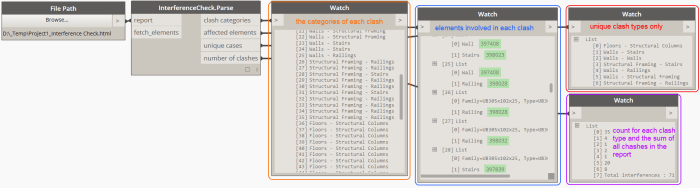
Process a Revit interference check report (HTML file) and extract the clash types (the categories of the clashing elements), all clashing elements and the total number of clashes. To generate an interference report in Revit, go to Collaborate > Interference Check > Run Interference Check.

Revit_2016-01-31_20-45-03.png

Inputs:

  • report: a file path to the location of the report.
  • fetch_elements: a Boolean toggle (True by default). When true, the node will attempt to fetch the elements involved in each clash. For this to be successful, the node must be executed from the Revit document that the report originated from. If the element does not exist any more, a null value will be returned instead. If you are executing from a different document (or from Sandbox mode), be sure to set “fetch_elements” to False. This will give you the ID of each element as a string for easy documentation.

Outputs:

  • clash categories: all clashes in the report.
  • affected elements: the elements involved in each individual clash.
  • unique cases: each type of clash is listed here only once. Use this to filter in a specific type of clash (and thus its elements).
  • number of clashes: a count for each unique clash type and the sum of all clashes found in the report. Useful for documentation purposes.

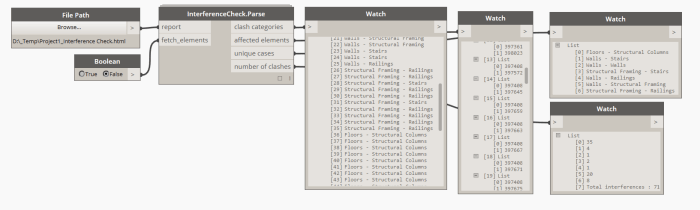
The expected result when “fetch_elements” is set to False:

Revit_2016-01-31_20-45-32.png

An example on how to filter a specific type of clash and fetch only its elements:

Revit_2016-01-31_20-46-55.png

In very limited cases, a clash type may not be recognized successfully and will be categorized as “Unidentified”. Please report those cases to the repository.

ErrorReport.Parse

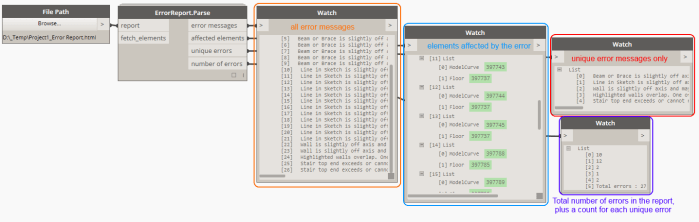
Process a Revit error report (HTML file) and extract the error types, all affected elements and the total number of errors.

Revit_2016-01-31_19-15-37.png

Inputs:

  • report: a file path to the location of the report
  • fetch_elements: a Boolean toggle (True by default). When true, the node will attempt to fetch the elements involved in each error. For this to be successful, the node must be executed from the Revit document that the report originated from. If the element does not exist any more, a null value will be returned instead. If you are executing from a different document (or from Sandbox mode), be sure to set “fetch_elements” to False. This will give you the ID of each element as a string for easy documentation.

Outputs:

  • error messages: all error messages in the report.
  • affected elements: the elements involved in each individual error.
  • unique errors: each type of error is listed here only once. Use this to filter in a specific type of error (and thus its elements).
  • number of errors: a count for each unique error type and the sum of all errors found in the report. Useful for documentation purposes.

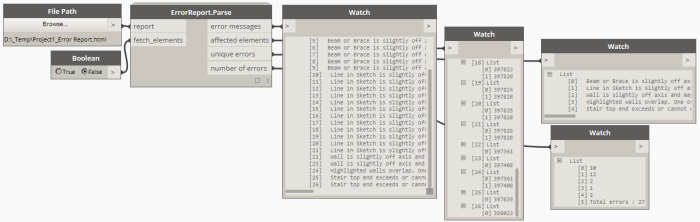
The expected result when “fetch_elements” is set to False:

Revit_2016-01-31_19-16-12.png

An example on how to filter a specific type of error and fetch only its elements:

Revit_2016-01-31_20-05-28

Dictionary.ByKeysValues

Dictionaries are an incredibly powerful tool for making associative sets between two equal length lists. The first is a list of keys (or indexes) and the second – a set of values (or the data that will be returned for each index).

DynamoSandbox_2016-01-31_18-43-25.png

Inputs:

  • keys: it must consist of unique strings or numbers.
  • values: a value that will be returned for each key.
  • search keys: the list of keys(indexes) that you want returned.


Manipulate data, sculpt geometry, explore design options, automate processes by remotely accessing your visual programming environment on trending virtual PCs from CloudDesktopOnline.com powered by one of the best DaaS providers – www.Apps4Rent.com.

The dictionary values can hold lists of objects:

DynamoSandbox_2016-01-31_18-58-39.png

Or Revit elements:

Revit_2016-01-31_18-59-53.png

If a search key is not found in the dictionary, an empty list will be returned instead.

DynaWorks Node Index

DynaWorks is maintained by Adam Sheather, see this post on DynaWorks 16.

On github at https://github.com/Gytaco/DynaWorks

AppendFile
ClearClashResults
GetCameraPoint
GetClashBoundingBox
GetClashDetection
GetClashGroupResults
GetClashNodes
GetClashPoint
GetClashResultComments
GetClashTests
GetDirectionPoint
GetFilesInProject
GetNavisAttributesFromNodesList
GetNavisAttByClassName
GetNavisAttByClassUserName
GetNodeChildren
GetNodesFromSelectionsSets
GetObjectNames
GetObjectValues
GetPropertiesList
GetSavedViewCommentsByName
GetSavedViews
GetSelectionSetsInProject
GetSuitableDirectionPoint
GetSuitableEyePoint
GetValuesAsStringClassName
GetValuesAsStringClassUserName
GetView
GetViewDirection
mGetCamerPoint
mGetClashBoundingBox
mGetClashPoint
mGetDirectionPoint
mGetSuitableDirectionPoint
mGetSuitableEyePoint
mGetViewDirection
NodeByClassNameList
NodeByClassUserNameList
OpenFile
PublishFile
RemoveResolved Clashes
RunAllTests
SaveAs
SaveFile
StayOpenFile