In some cases it is difficult to multi-select and Duplicate multiple Views in the Project Browser. This node takes a list of Views and attempts to Duplicate them. It also takes a duplicationOption as input, which is by default set to Duplicate. This first version does not return the newly created views as elements (ie. the views usually appended with “Copy 1”), but it should do so in future version.
Bakery
Copy Section Box to List of 3D Views
Sometimes you will want to maintain a number of different 3D views with the same Section Box extents, but perhaps with different View Templates applied. This node was designed to copy the Section Box extent from one 3D view, and apply it to a list of 3D views. It also notifies if the Section Box was applied successfully. In the example below, I simply modified the shape handles of one 3D view Section Box, and then used the definition as shown below to copy the Section Box from the Active View to the other related 3D views. The node deliberately removes the ‘source’ 3D view from the 3D views to be modified.
Create Navisworks Search Set XML for Element Ids
This node is an early proof of concept to demonstrate how a Navisworks search set xml can be built using Dynamo, running from the Revit environment. This example takes an element Id list, and then builds the XML using Core String and WriteToFile nodes. It can then be imported and used in Navisworks.
Speak Single String via Speech Synthesizer
Revit Section View at Line
In large models, Revit can be agonisingly slow to regenerate when trying to draw a new Section View (it is usually trying to detect the required view depth). This node was created to quickly make section views by selecting Line elements in Revit. Here’s how to use it:
1. Open a Plan where you can see Revit Lines
2. Open Dynamo
3. Place the Revit Section View at Line node
4. Set desired View Depth (Far Clip Offset)
5. Set desired View Height (the base of the section will likely be Floor Plan level, with top of the section based on this value)
6. Set FlipSection to true if you want to rotate the plane through 180 degrees (effectively flipping the section)
7. Use “Select Model Elements” or a similar element collection node or method to feed a list of Detail Lines and/or Model Lines into the revitLines input
This initial version has been set up for Sections intended to be visible on Plan views, and will not work in other planar situations (such as running from an Elevation). Future versions could look at working on any Line in any view, and possibly allowing any plane Rotation (such as 90 degrees for perpendicular sections).
Note: you may have to press Run twice to make it work, depending on your version and system?
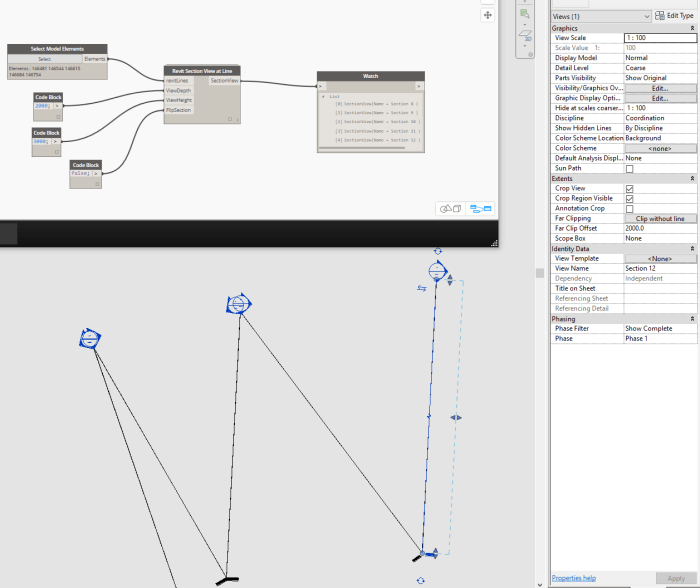
This screencast shows the node in action:
https://knowledge.autodesk.com/community/screencast/e316f8ef-9bab-4857-be9d-8562191a0024
Copy Workset Name to Target Parameter
Get Parents for Parts from Host and One Linked Document
This node takes a list of Parts, and one string to search Link names for. It then gets the first parent from each part, and attempts to obtain the actual Revit element from either the current (host) model, or from the Link document matching the string input. With a bit more work, this node can be extended or replaced by a new version that handles parts from many different source Link documents.