Workflow: Get Parameters from Part Parents and Write to Parts

Using a selection of nodes to gather the parents of given Parts in the Revit model, we can also get parameters or properties from the Parents and write them into the Parts themselves. For example, we could obtain the Level of the linked Parent Floor Elements for a set of Parts, and then write that into the Comments parameter of the Parts themselves.

The images below show this idea in action:


Rhino to Revit (SAT to Spring Nodes)

There are a couple of ways to go about this (all of which require Springs Nodes):

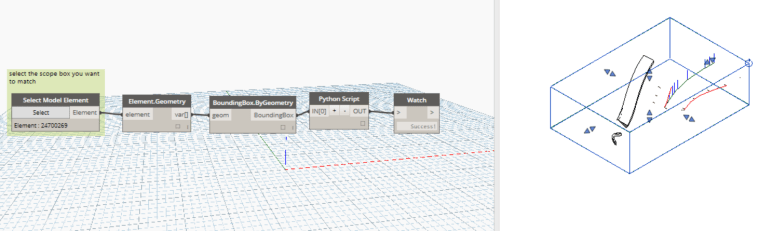
  1. If you are in a family environment it is as simple as this:
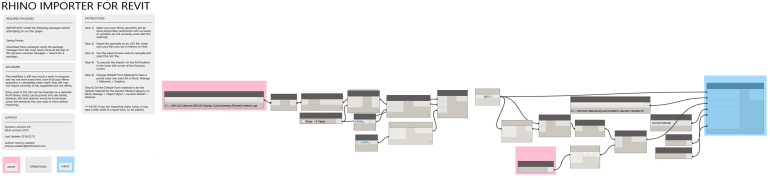
  2. If you are at the project level of a Revit project then there is a just a bit more that needs to be added:

In the end though, the results are pretty much the same. You should end up with native Revit, free form elements, some of which will even display handles which can be used to edit this geometry (usually simpler, rectilinear geometries such as boxes will be fully editable, other times things like lofted geometries might have and end face that is editable).
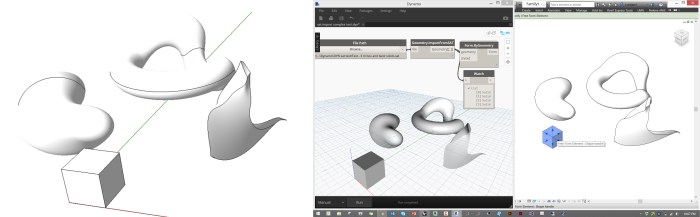
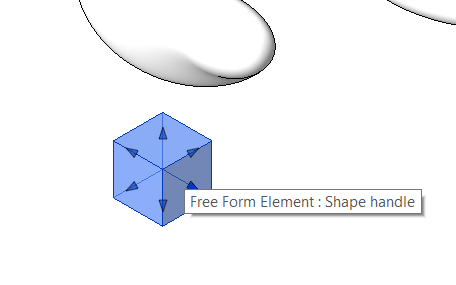
 

SAT-RH-RVT

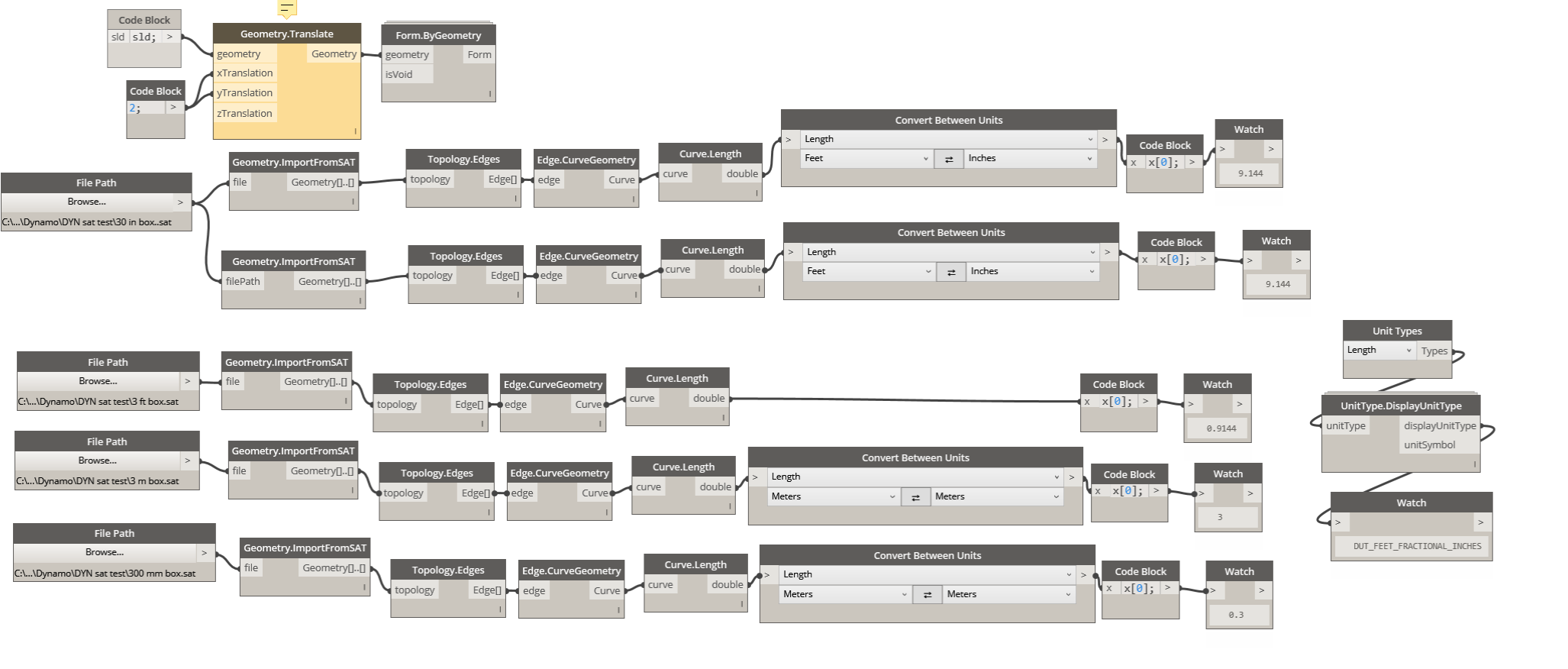
SAT-HandlesBe aware that there is a scaling issue currently with dynamo’s SAT import nodes where the they only read the geometry as though it were in meters, but this can be easily fixed through some creative scaling before “baking” it into Revit.
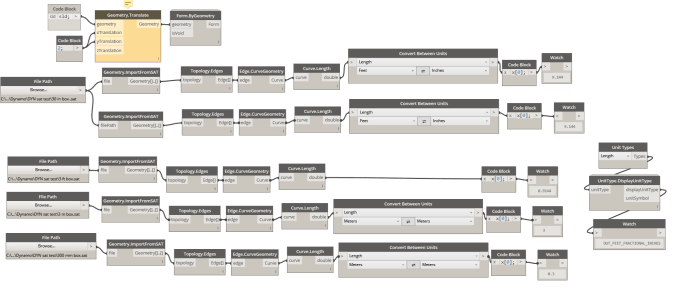
sat unit test

This workflow can also be used to bring SAT information into Revit from Inventor as well.


Workflow: Set Revit Links to Individual Worksets in a Federated Model

It is often useful to have each Revit Link on its own workset. Let’s say you have just set up a new model, and linked in 10 other Revit models. We need to create some worksets, and then set the links to those worksets. This can be done automatically, in two simple steps in Dynamo:

  1. Create Worksets for Revit Link Filenames
  2. Set Link Instance and Type Worksets by Revit Link Filename

After running these two nodes, all the Link Instances and Types should be set correctly.

Save your work before using it on your own project… 🙂

This slideshow requires JavaScript.


Workflow: Paste List of Element Ids and Get their Room Number in Federated Model

This workflow was designed to work this way:

· Paste a list of Element Ids into the blue area, these can be copied directly from Excel rows

· Set the input Link filename, and the source Room filename

· Click Run and it will use Room.IsPointInside to check which Linked Room that Linked element resides in

· It will output list to Clipboard as a string that can be directly pasted to Excel

These list-to-string-to-clipboard (and vice versa) nodes allow for easy editing and re-running of a node, without having to handle CSV or Excel input / output. This is useful for quick investigations.

DYN: Download

Workflow: Send List of DYF Node Names to Clipboard

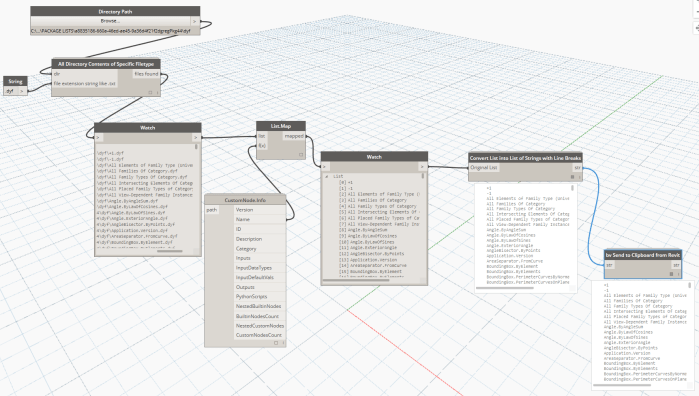
In this workflow, you simply input a Directory Path and it will get all the node names of the DYF files in that folder, and send them directly to Clipboard. For the Clipboard integration to work, it must be run from a Revit-Dynamo instance (not in Sandbox mode).

Workflow Send List of DYF Node Names to Clipboard

Following this, you can switch to another application and use Ctrl+V to Paste the data. If you want to create tasks in Asana from these line items, paste it temporarily in Notepad and then Cut-Paste 100 items at a time directly into the Asana task list.

DYN: https://www.dropbox.com/s/nyq6cbortyne24e/Workflow%20-%20Send%20List%20of%20DYF%20Node%20Names%20to%20Clipboard.dyn?dl=0